EditVolt Settings
Everything EditVolt-specific lives in one window: which model answers you, what the agent is allowed to do, what it remembers, and the rules, skills, subagents, hooks, commands and MCP servers it works under.
Opening Settings
| How | What happens |
|---|---|
⌘, (macOS) / Ctrl+, | Opens EditVolt Settings. This binding deliberately overrides the editor's own settings.json binding. |
| Command Palette → EditVolt: Open Settings | Same, and accepts a section id (EditVolt: Open Settings Section). |
| Menu bar → EditVolt → EditVolt Settings… | Same. On macOS it is also under the app's Settings menu. |
With a folder open, Settings opens in its own 1024×720 window so it never takes an editor tab from your project. In an empty window it opens as a normal tab instead.
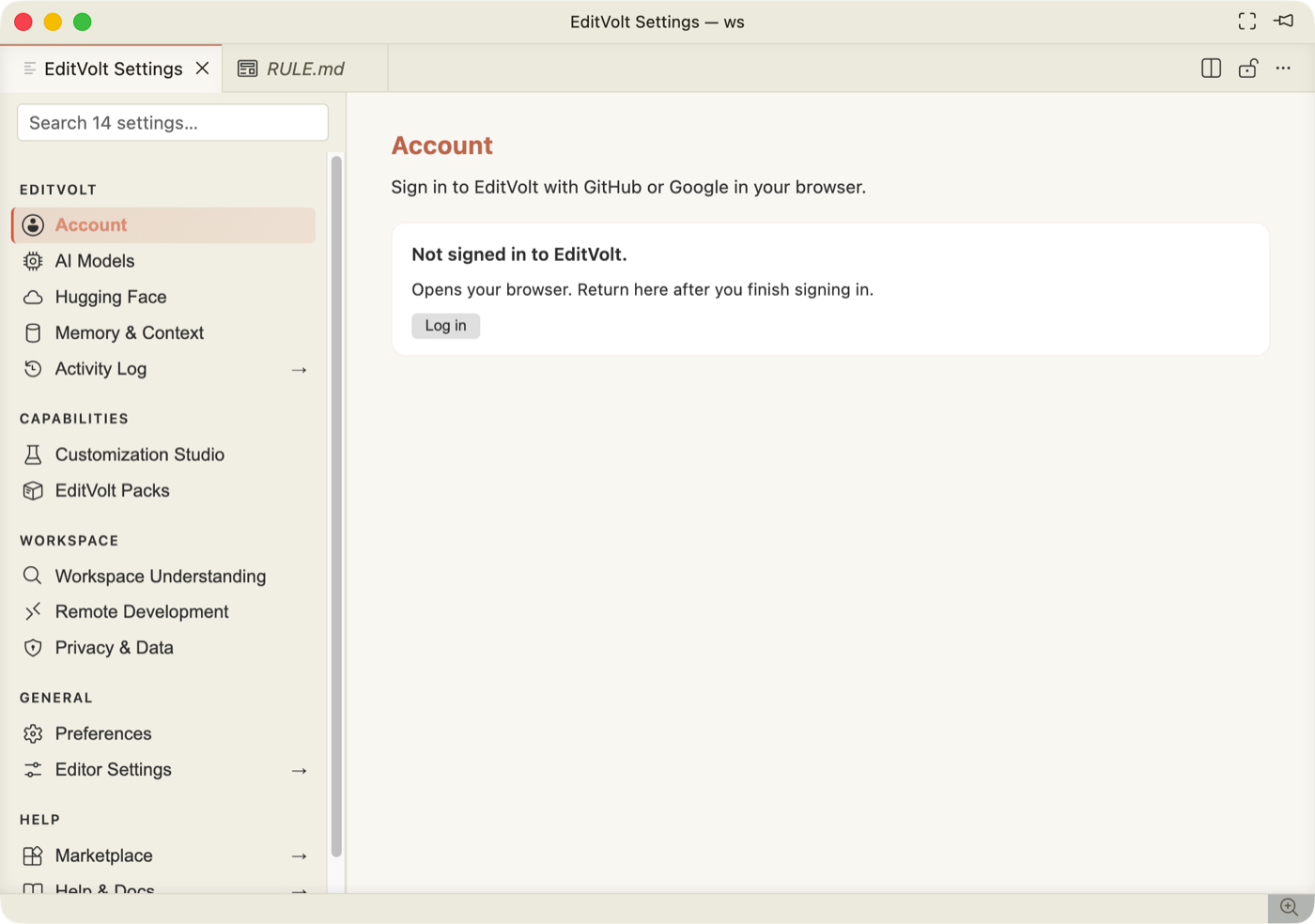
The left rail is fixed: a search box, then five groups. Entries with an → are links that jump somewhere else in the app rather than rendering a page here.
| Group | Entries |
|---|---|
| EditVolt | Account · AI Models · Hugging Face · Memory & Context · Activity Log → |
| Capabilities | Customization Studio · EditVolt Packs |
| Workspace | Workspace Understanding · Remote Development · Privacy & Data |
| General | Preferences · Editor Settings → |
| Help | Marketplace → · Help & Docs → |
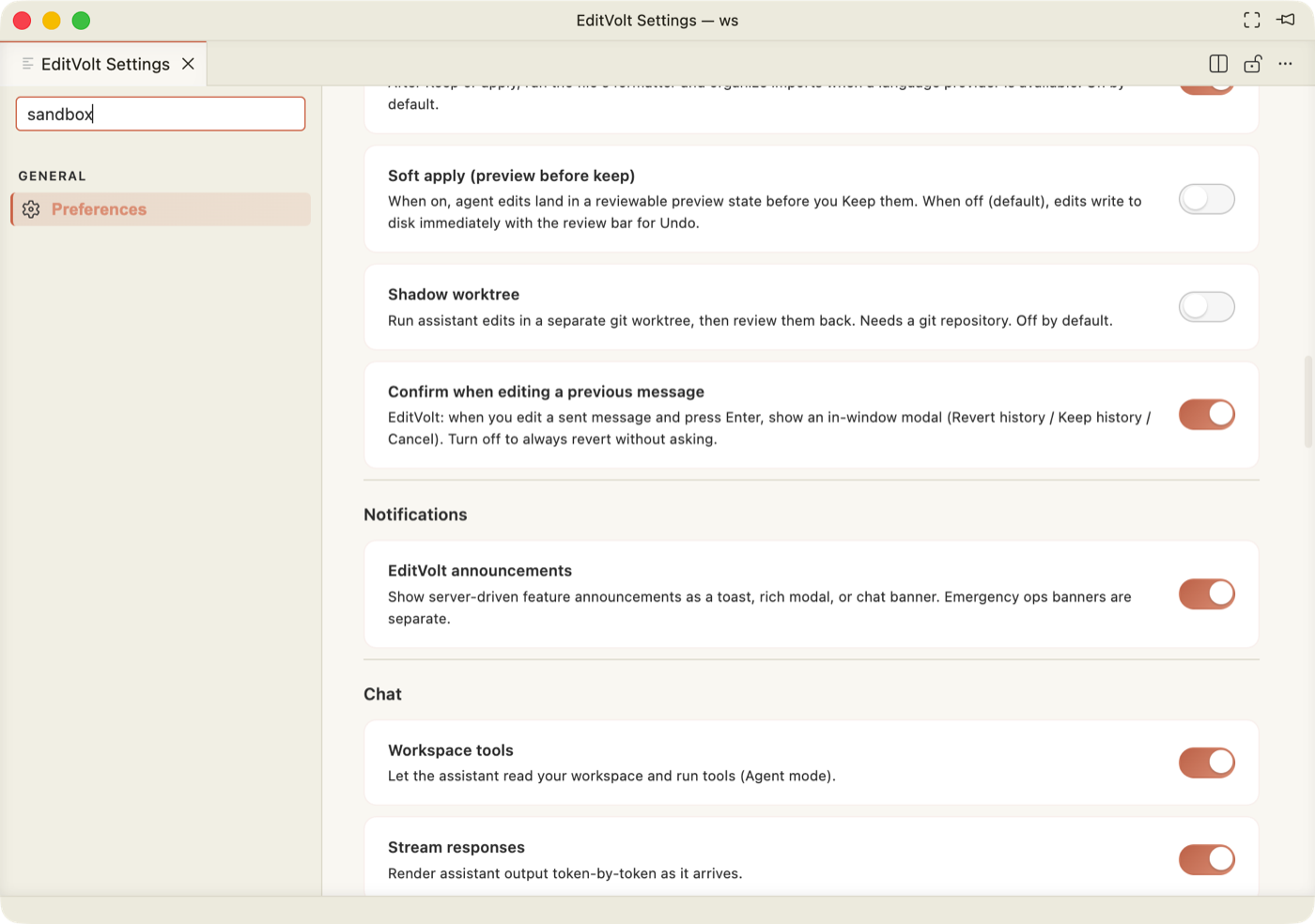
The search box filters the rail by section name and by the settings inside each
section — typing sandbox leaves Preferences, the section that owns Sandbox enabled.
Account
Sign in to EditVolt with GitHub or Google. Log in opens your browser; the token comes
back to the IDE over 127.0.0.1. Signing in is optional — chat, agent mode and
completions all work signed-out with the on-device models.
AI Models — connecting a model
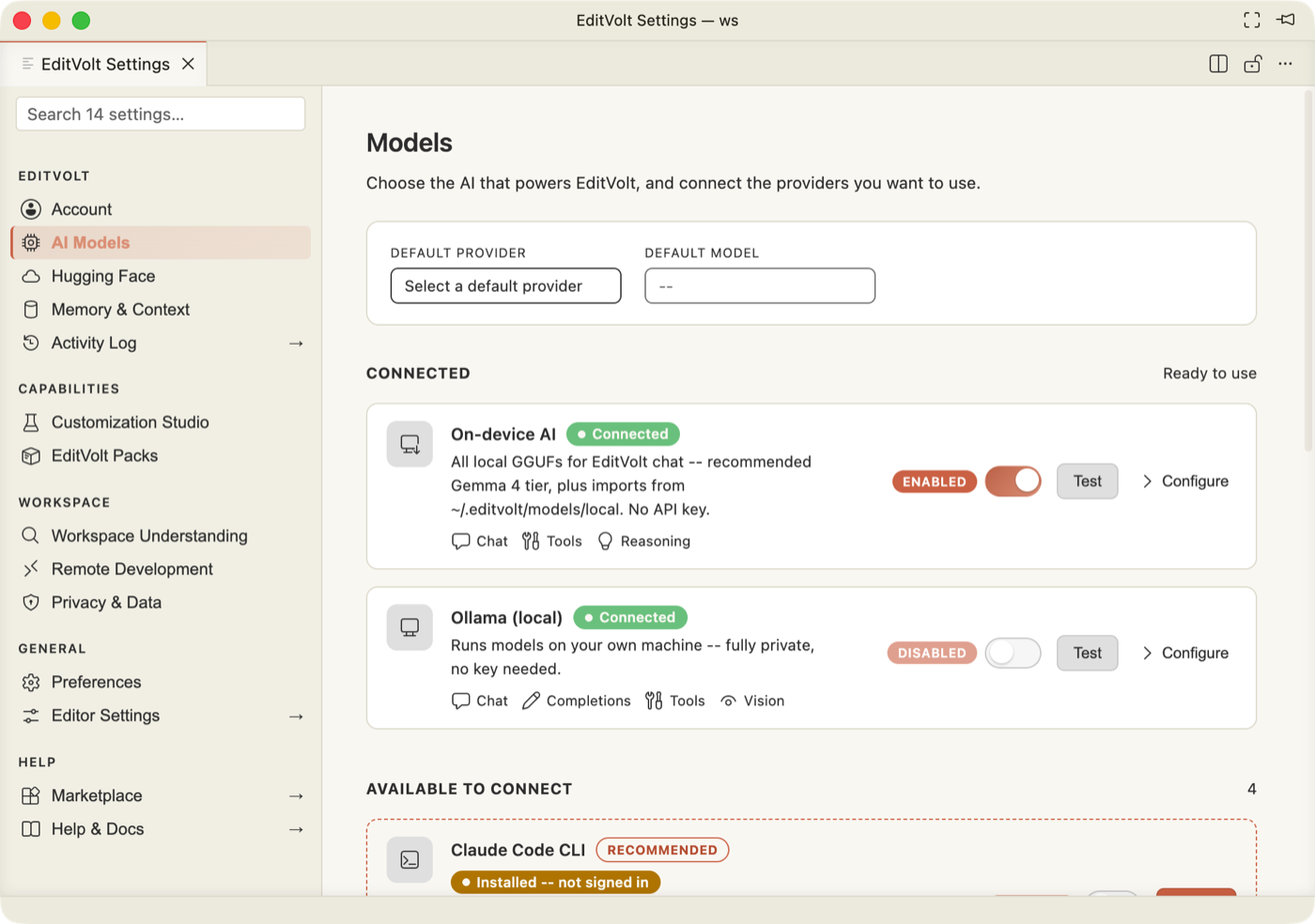
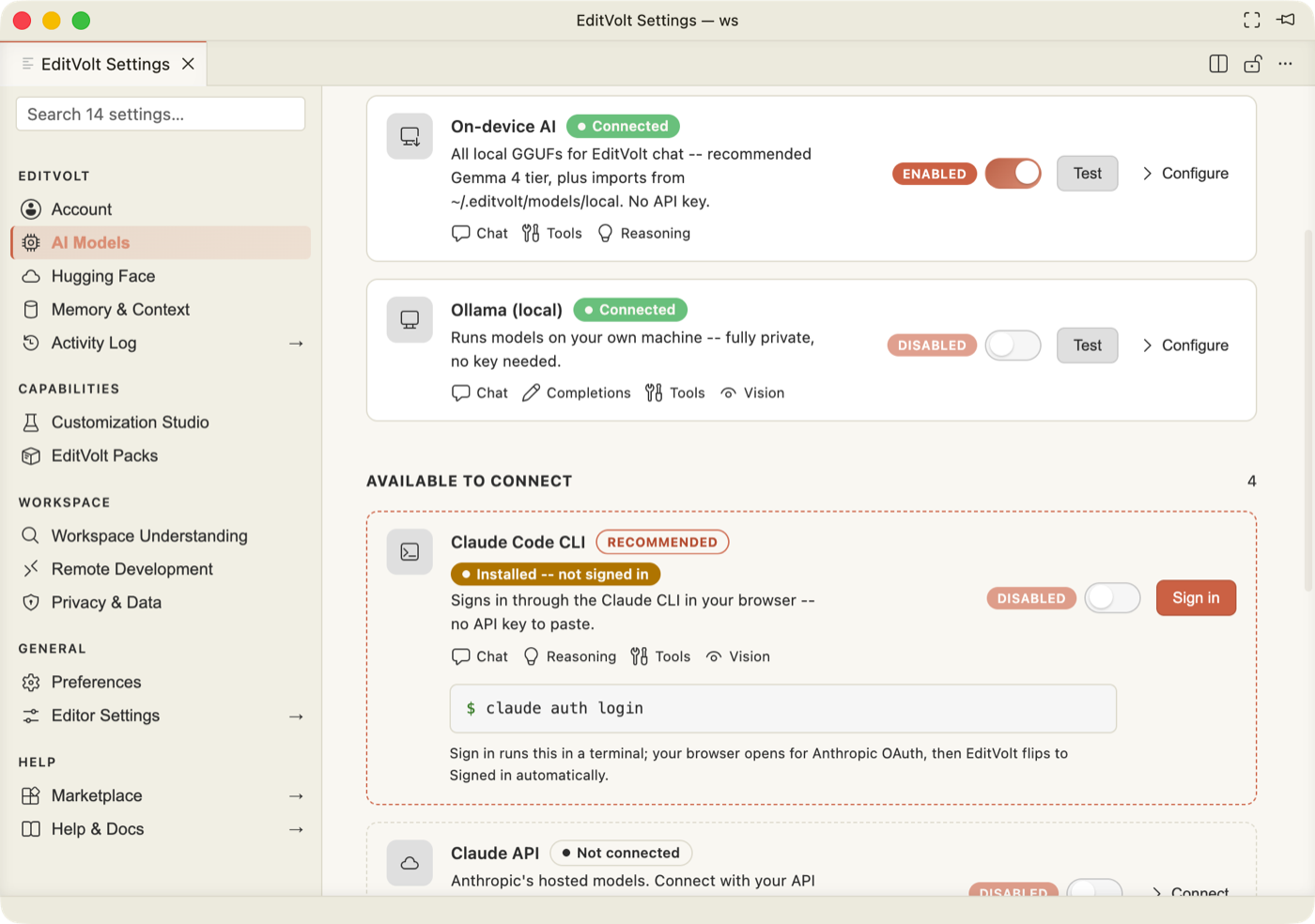
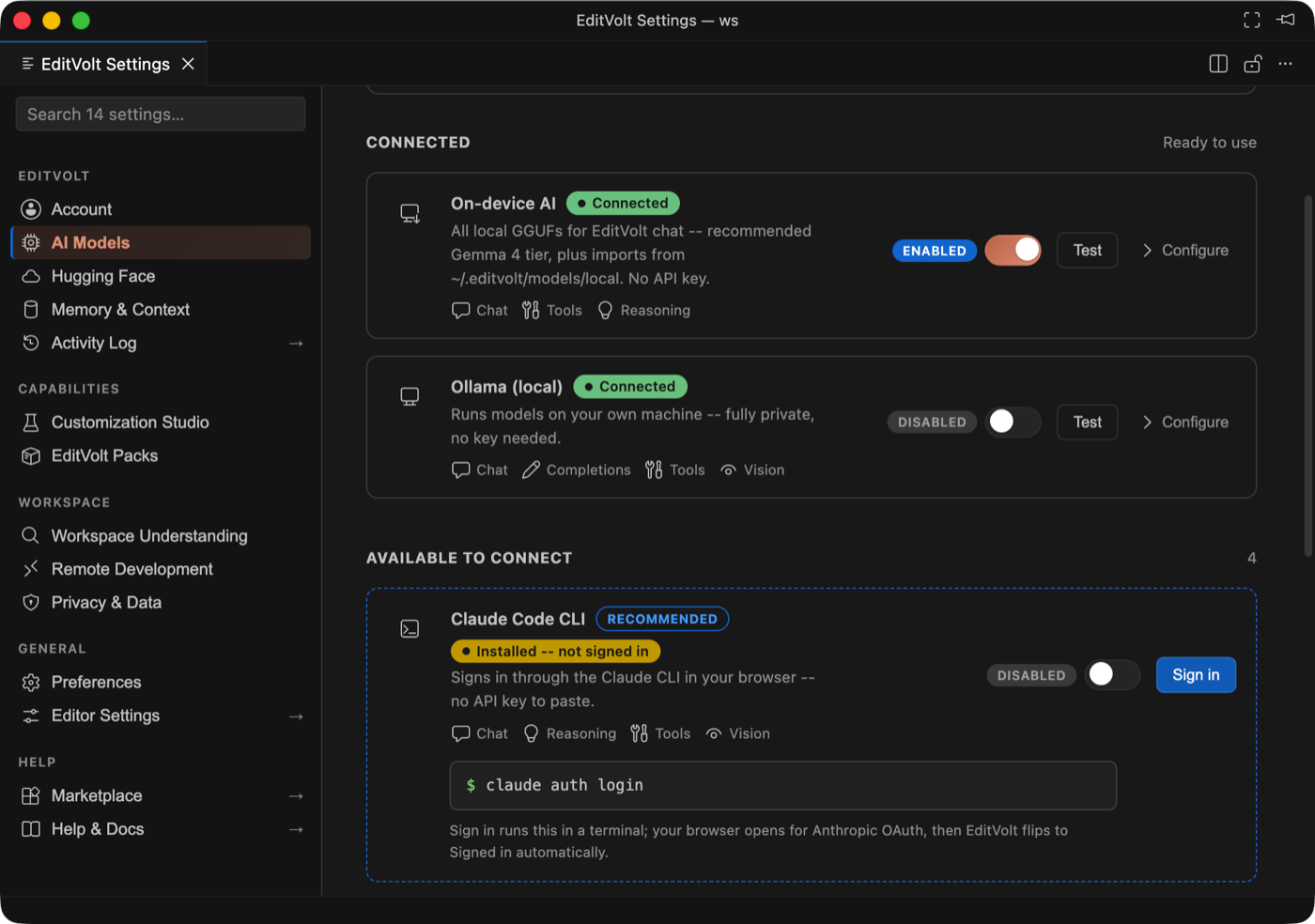
This is the landing section. Providers are split into Connected (usable now) and Available to connect, each card showing a status pill, an enable switch, a Connect / Configure disclosure, and the capabilities that provider supports — Chat, Completions, Reasoning, Tools, Vision.
The two fields at the top
| Field | What it does |
|---|---|
| Default provider | Which connected provider new chats use. Picking one immediately stamps a Default badge on that card. |
| Default model | Which model of that provider to use. It is filled in for you when you pick a provider, and lists that provider's models. |
To connect a cloud provider
- Find the card — Claude API, Gemini, or OpenAI (any OpenAI-compatible endpoint works, including a custom base URL).
- Click Connect, paste your API key, and save. Keys go to the OS keychain —
never to
settings.json, and nothing is sent anywhere except that provider. - Flip the card's switch to ENABLED. A provider can be connected but switched off; only enabled providers appear in the chat model picker.
- Set it as Default provider if you want it to be the one new chats use.
Claude Code CLI and Ollama are detected rather than keyed. An installed but
signed-out CLI sits under Available to connect as Installed — not signed in, with a
Sign in button that runs claude auth login for you; the card flips to Signed in on
its own once the browser OAuth finishes. Ollama is picked up when it is serving on
127.0.0.1:11434. Every card also has Test, which proves the provider answers before
you rely on it.
On-device AI
EditVolt ships local models, so chat and agent mode work with no account and no key. Configure on the On-device AI card opens the full local panel:
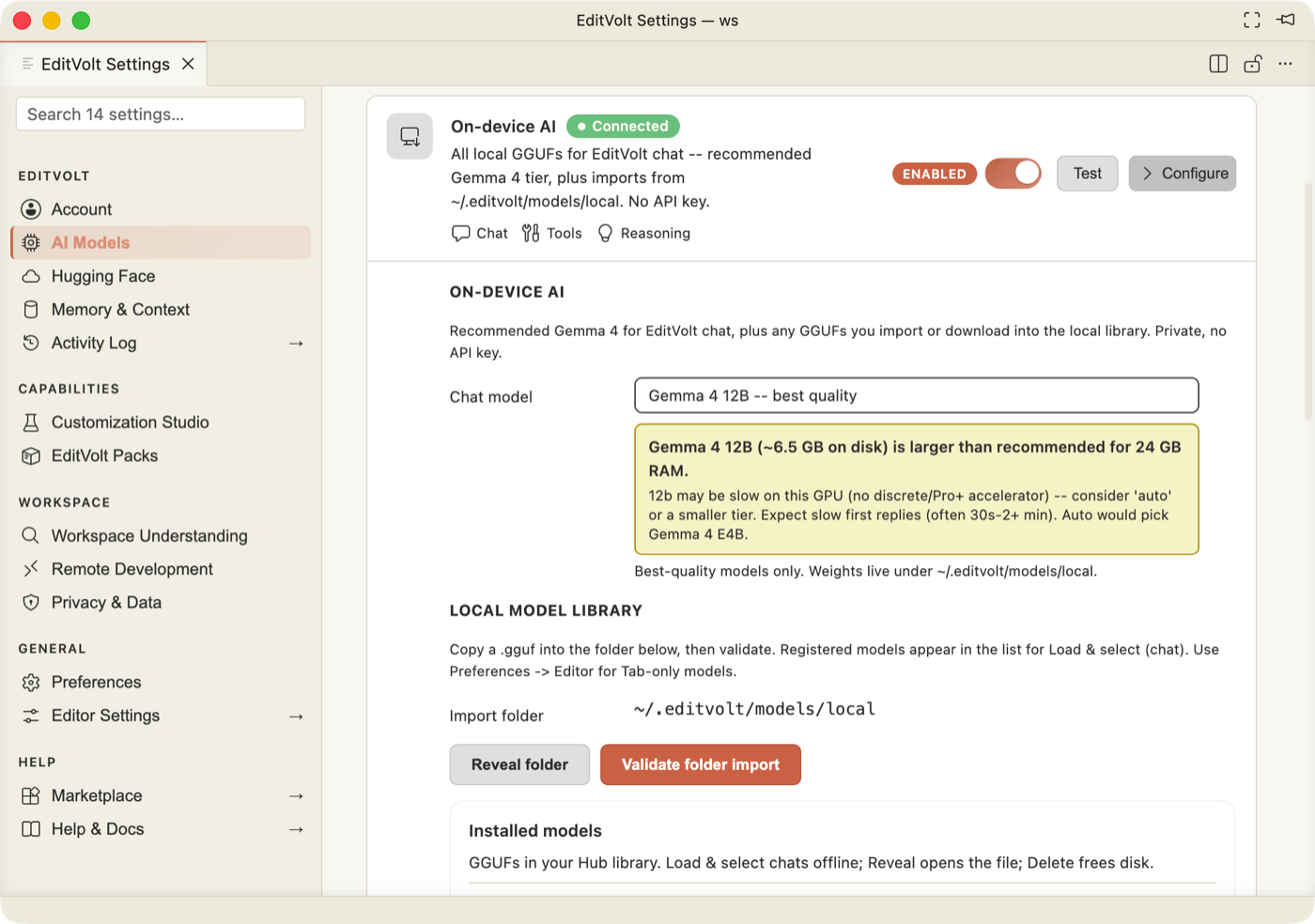
- Chat model — pick a bundled model (Gemma 4 E2B / E4B / 12B, Nemotron Nano 12B). The panel warns when a model wants more RAM than the machine has.
- Import a model folder… — point at a folder of GGUFs you already have.
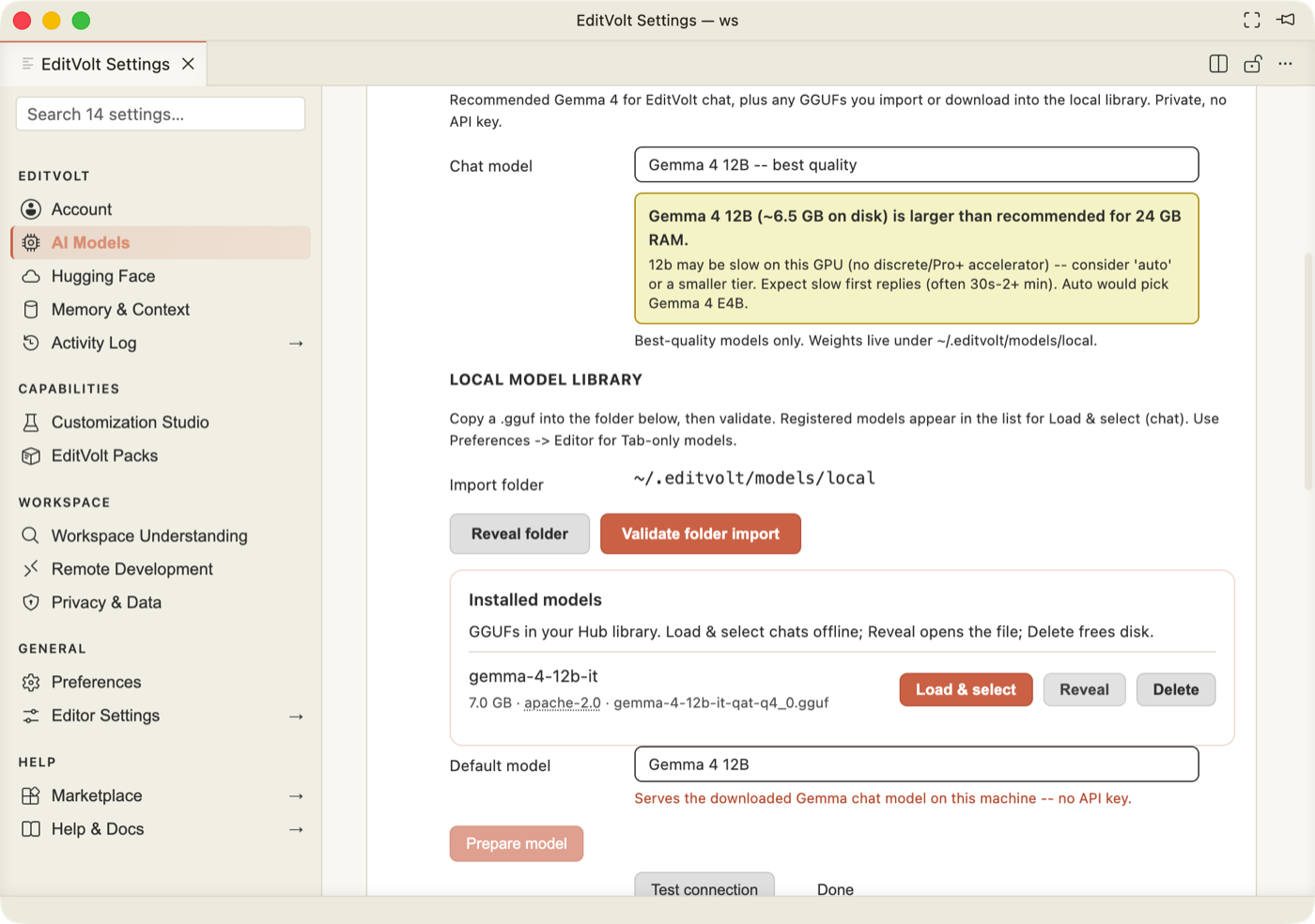
- Installed models — every local model with Load & select, Reveal, Delete.
- Prepare model warms the weights; Test connection proves the local server answers.
Tab-completion models are chosen separately, in Preferences → Editor.
Hugging Face
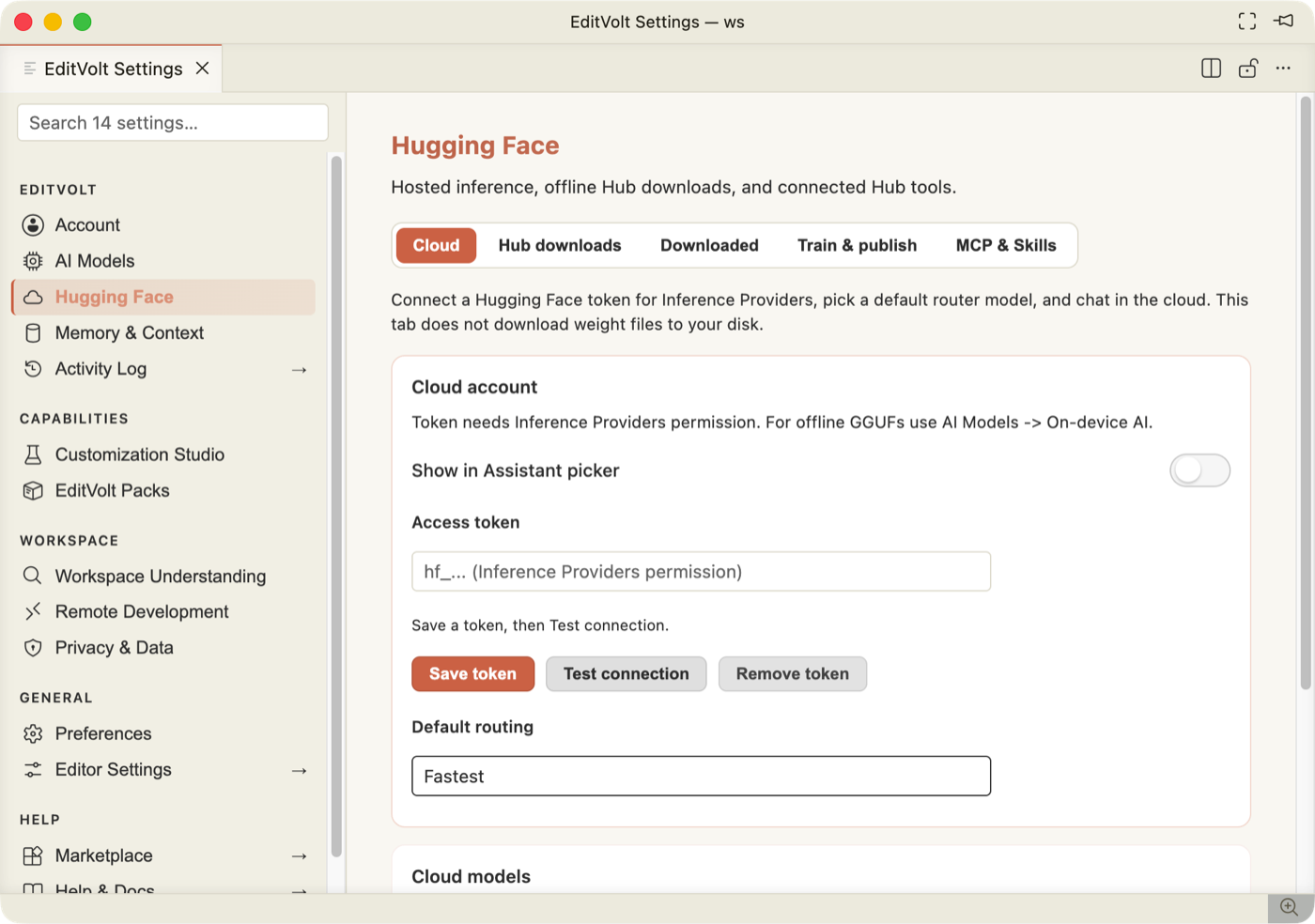
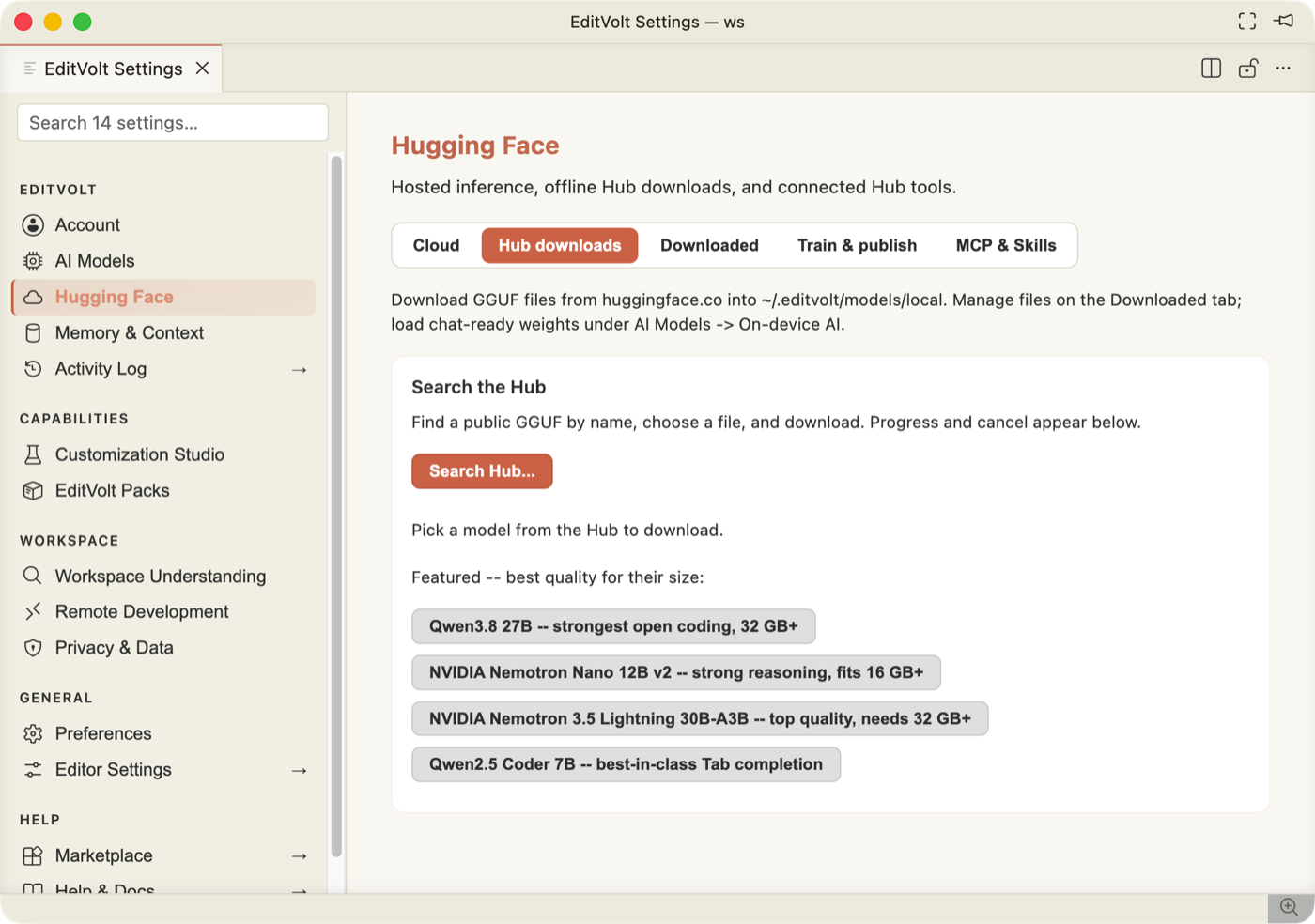
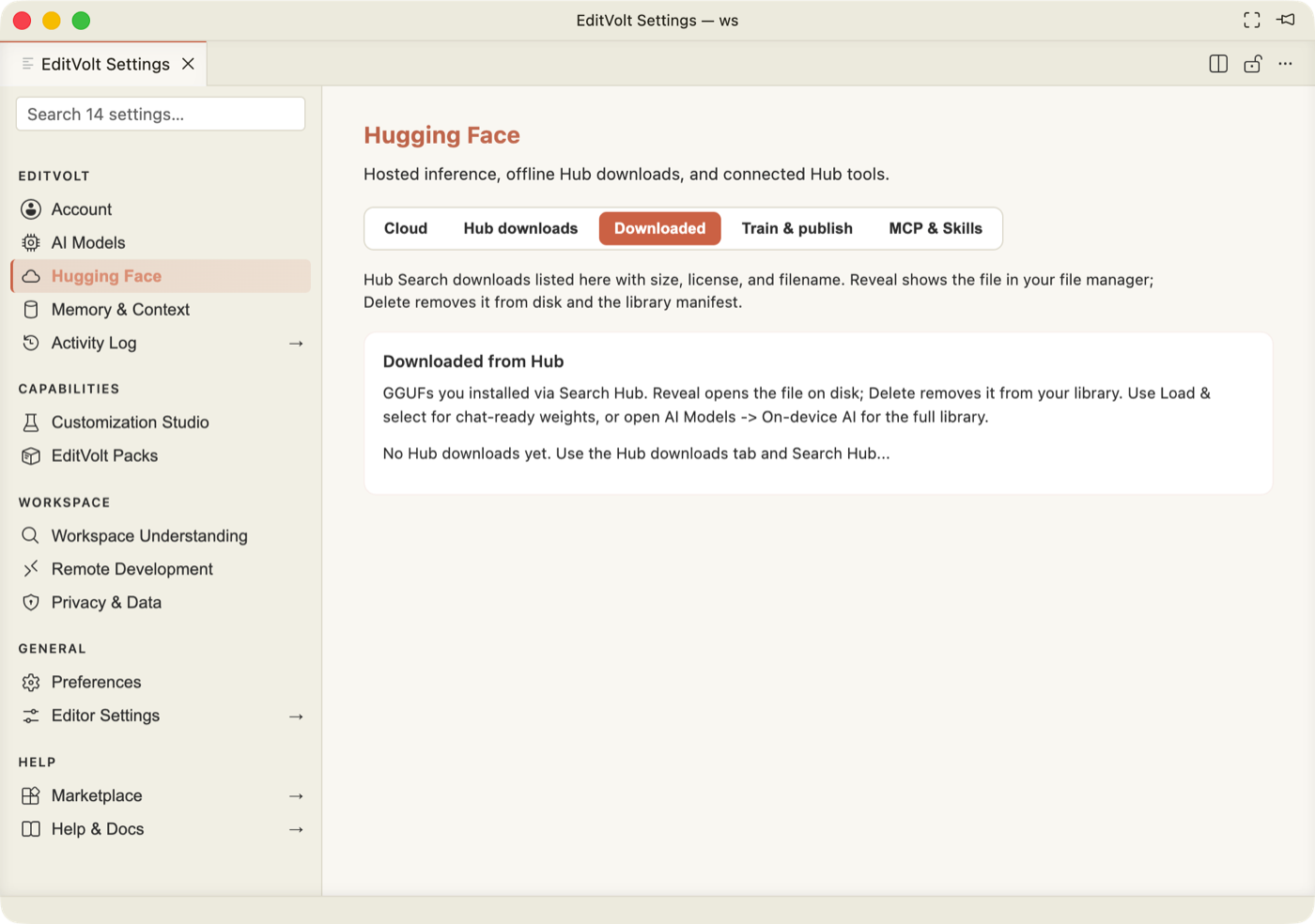
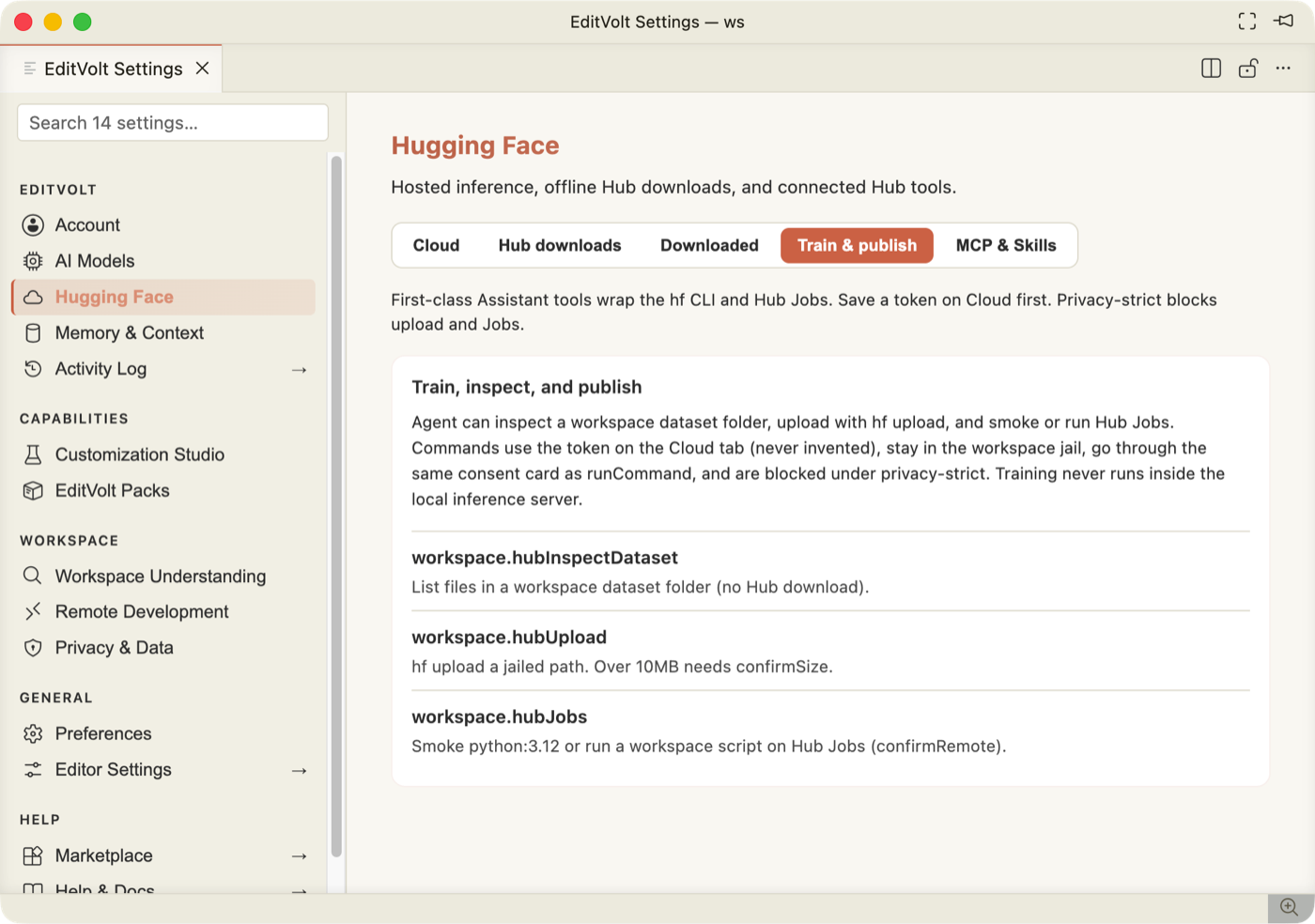
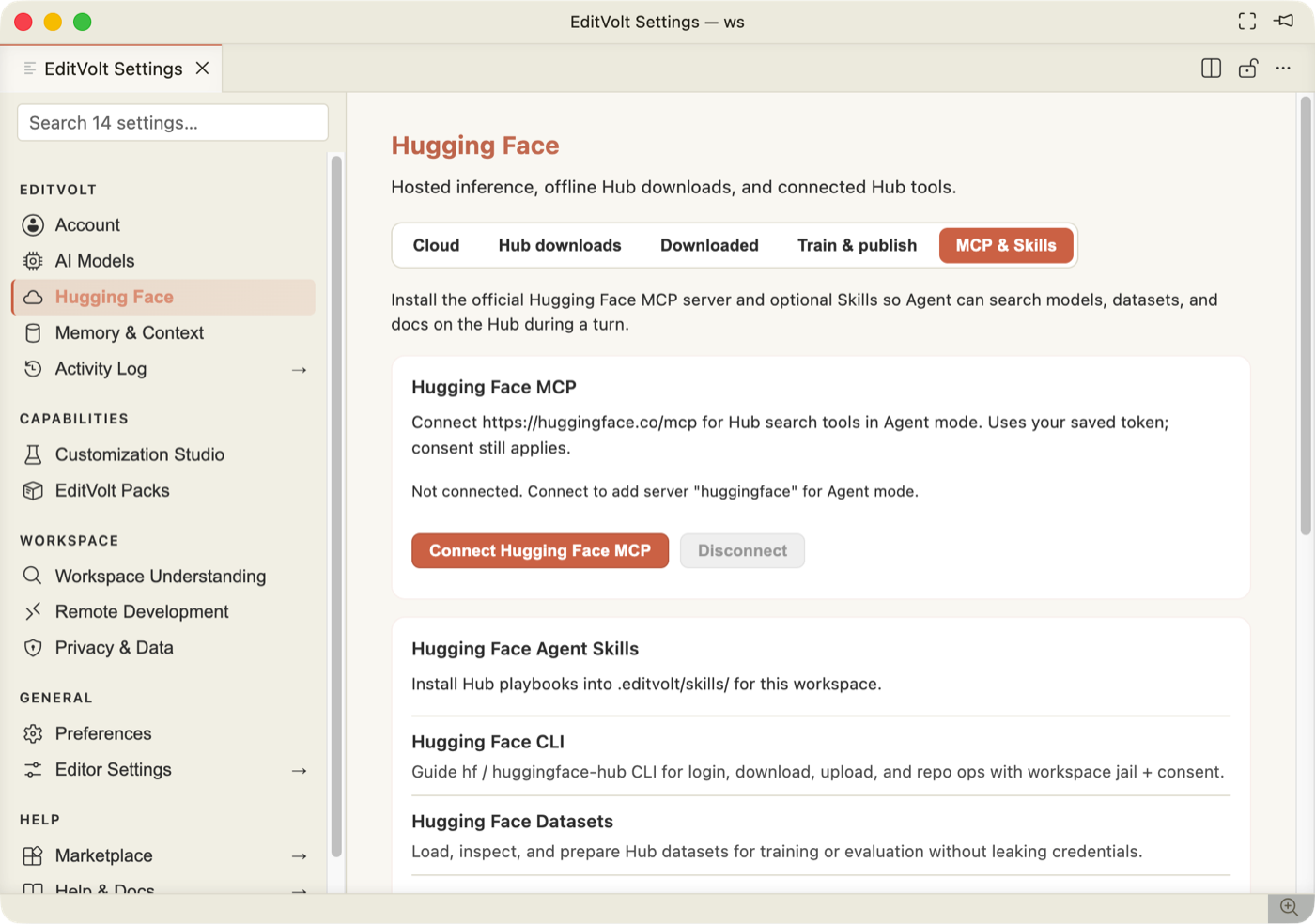
A five-tab surface for everything Hugging Face.
| Tab | What it is for |
|---|---|
| Cloud | Sign in with an HF token; run models through HF Inference instead of locally. |
| Hub downloads | Search the Hub, review a model's licence and size, and download it for on-device use. |
| Downloaded | What is on disk: size, quantisation, and the action to expose a model in the model picker. |
| Train & publish | Fine-tune from local data and push the result back to the Hub. |
| MCP & Skills | Hub-hosted MCP servers and skills, installed into .editvolt/. |
Memory & Context
Long-lived notes the assistant can reuse across chats, plus the status of the workspace semantic index. Everything here is local.
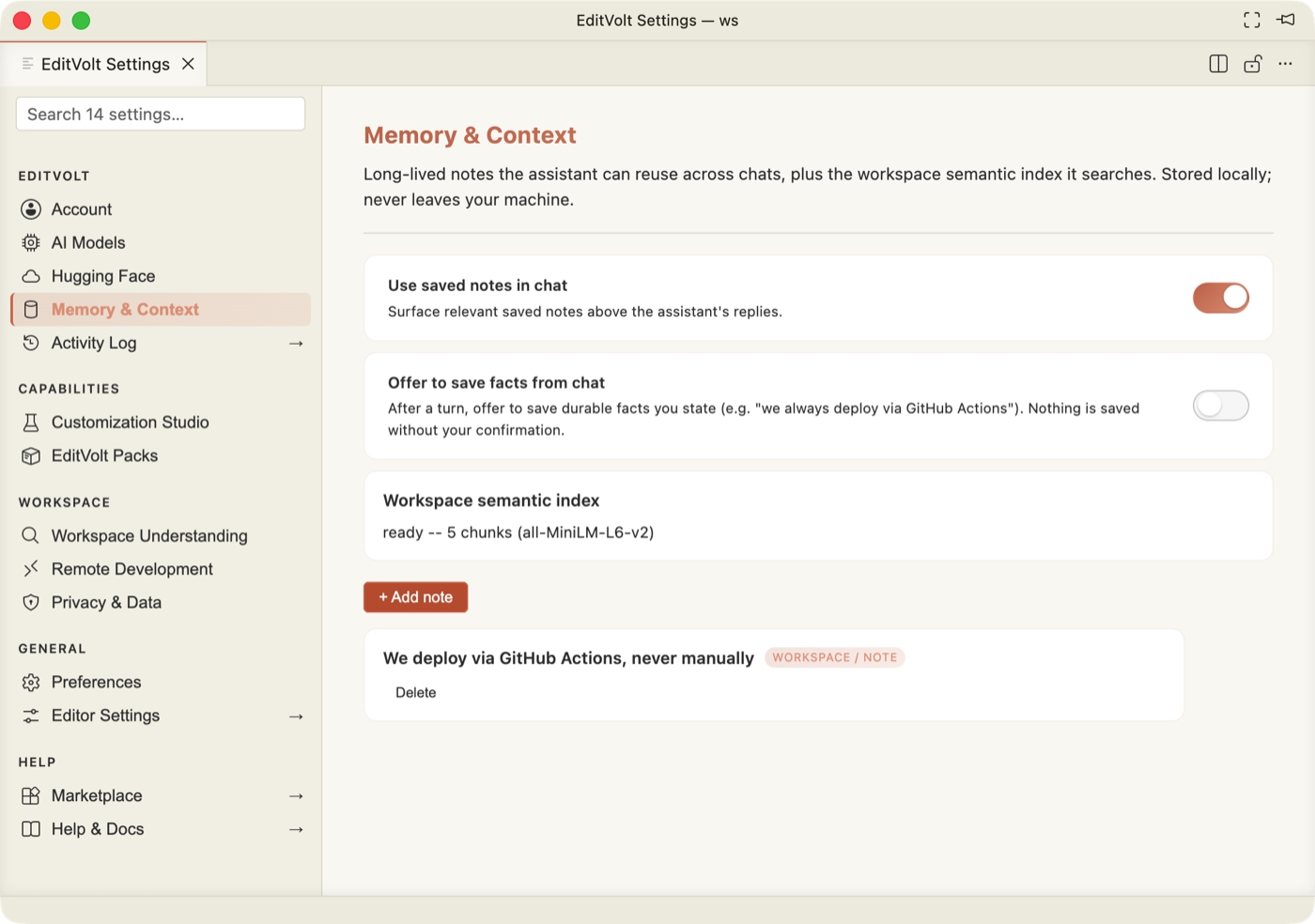
| Control | Setting | Default |
|---|---|---|
| Use saved notes in chat | product.memory.recall.enabled | on |
| Offer to save facts from chat | product.memory.autoCapture | off |
| Workspace semantic index (read-only status) | — | — |
| + Add note | writes to the local memory store | — |
Saved notes render as cards with a scope / type badge and a Delete action.
Notes are workspace-scoped: they land in <workspace>/.editvolt/memory.db, so they
travel with the project and never leave the machine.
Activity Log →
Opens the Audit panel in the main window: every action this session, filterable by lane (orchestrator, subagent, tool, fs, memory, model downloads), with the outbound counter that backs the telemetry-zero claim.
Customization Studio
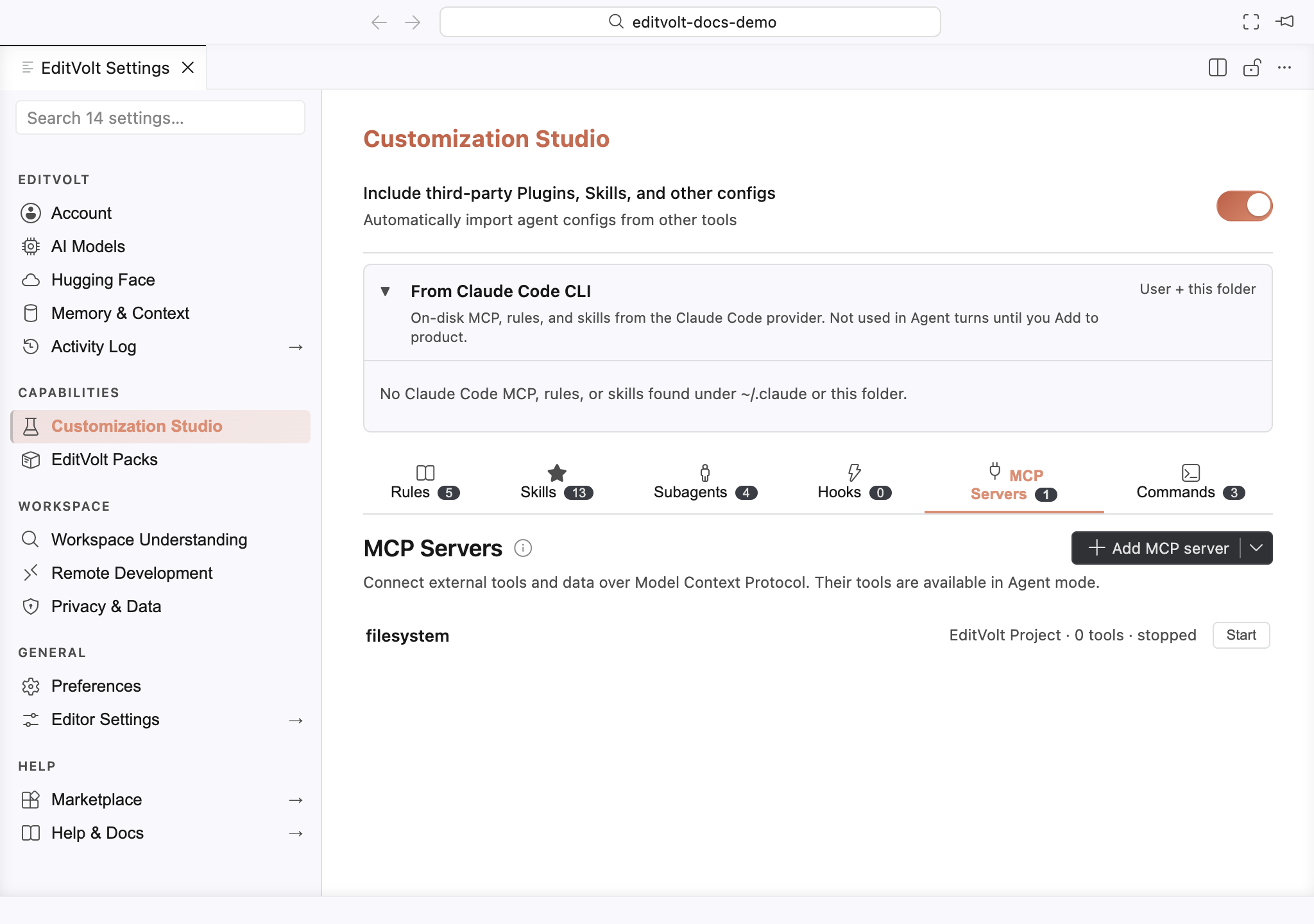
One surface for the six things that shape how the AI behaves in this repo. Each tab shows
a live count, and everything is a plain file under .editvolt/ that you can commit.
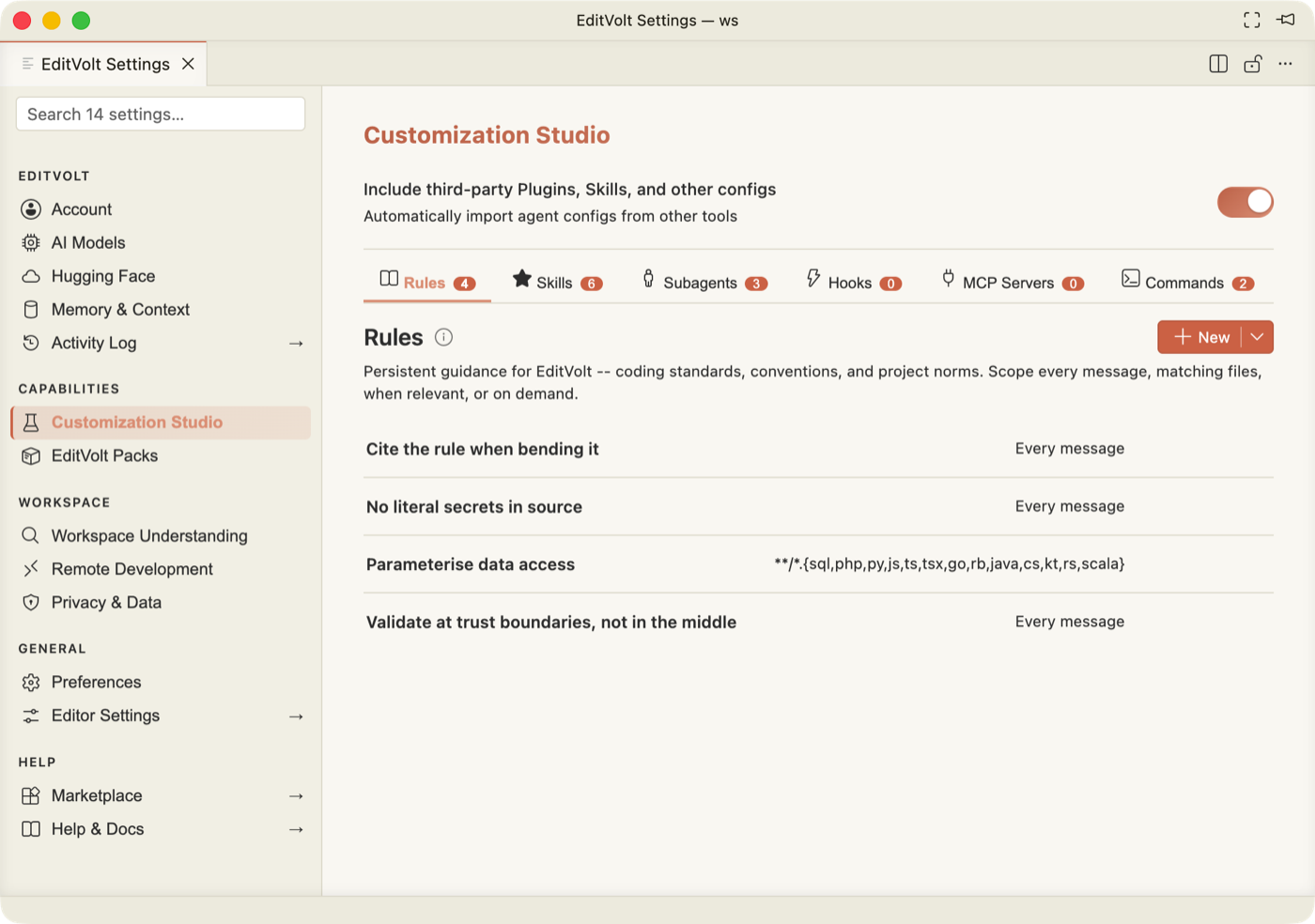
| Tab | Lives in | What it does |
|---|---|---|
| Rules | .editvolt/rules/<name>/RULE.md | Standing guidance injected into the prompt. |
| Skills | .editvolt/skills/<name>/SKILL.md | Repeatable multi-step workflows. |
| Subagents | .editvolt/subagents/<name>/SUBAGENT.md | Specialised delegates, also reachable via /delegate. |
| Hooks | .editvolt/hooks/<name>/HOOK.md | Actions that fire on agent events. |
| MCP Servers | .editvolt/permissions.json + MCP config | External tools and data. |
| Commands | .editvolt/commands/<name>/COMMAND.md | Your own slash commands. |
Include third-party Plugins, Skills, and other configs (product.customization.includeForeign,
on by default) imports what you already have from Cursor, Claude and Copilot, including
AGENTS.md files and .cursorignore.
Creating one — the same flow for all six
Click + New on any tab. An inline form appears with the target file path shown live underneath, so you always know what is about to be written:
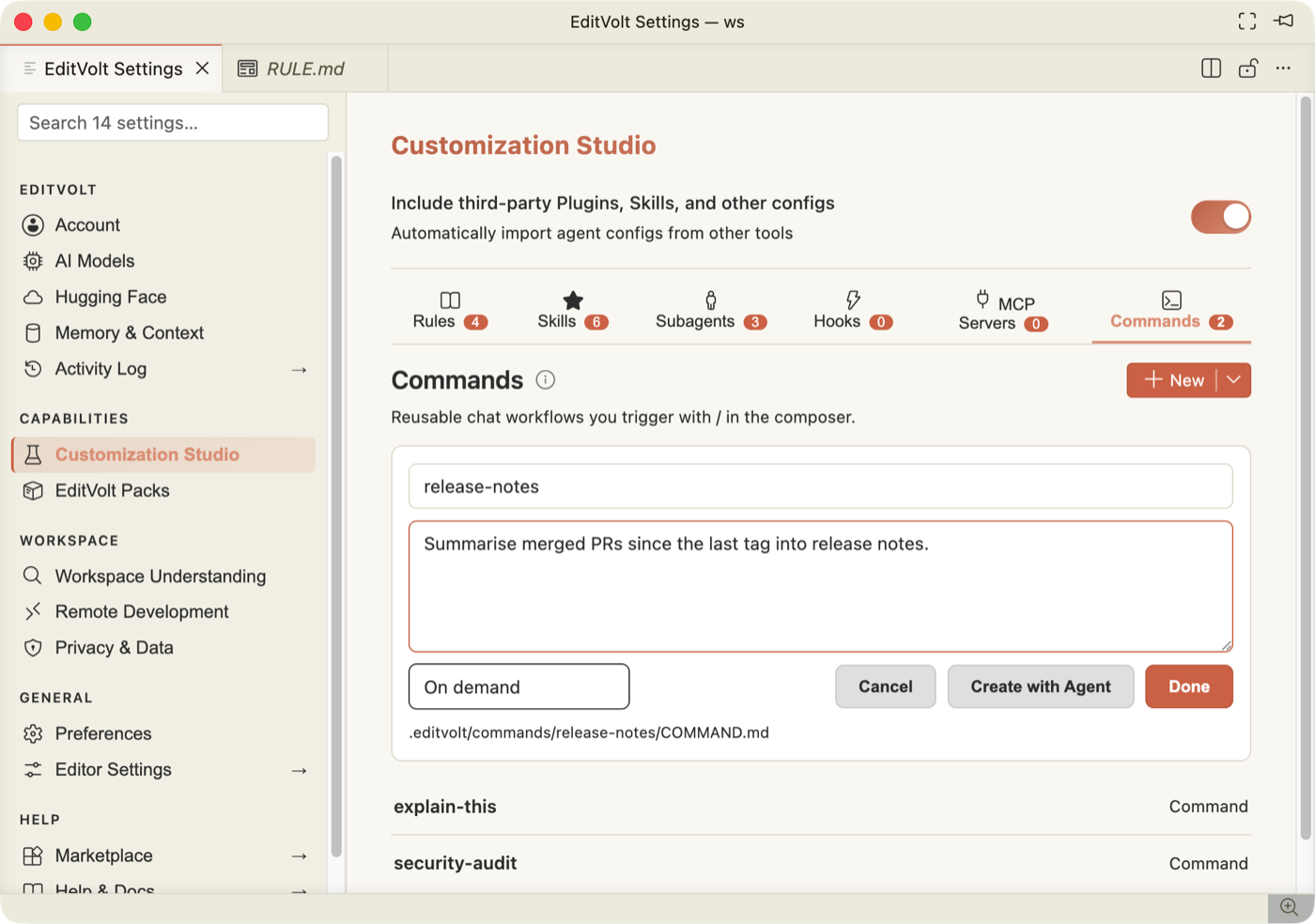
- Name — becomes the folder slug (
release-notes→.editvolt/commands/release-notes/COMMAND.md). - Description / body — for a rule, the rule text; for a command, what it should do.
- Activation — when it applies: Every message, Matching files (a glob), When relevant, or On demand.
- Done writes the file, or Create with Agent hands your description to the agent and lets it draft the file for you.
The caret next to + New adds Import from GitHub/GitLab for pulling in a shared customization repo.
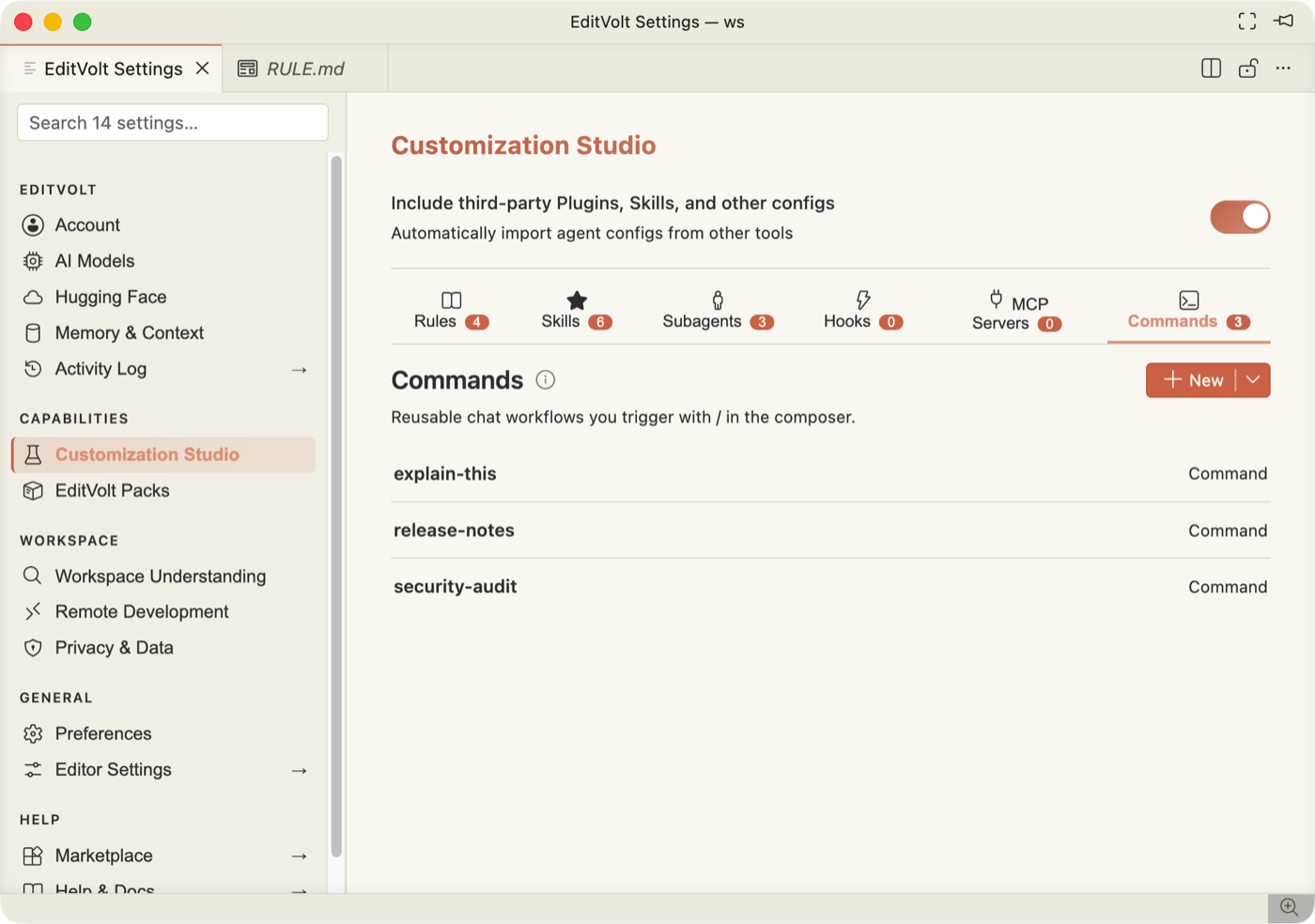
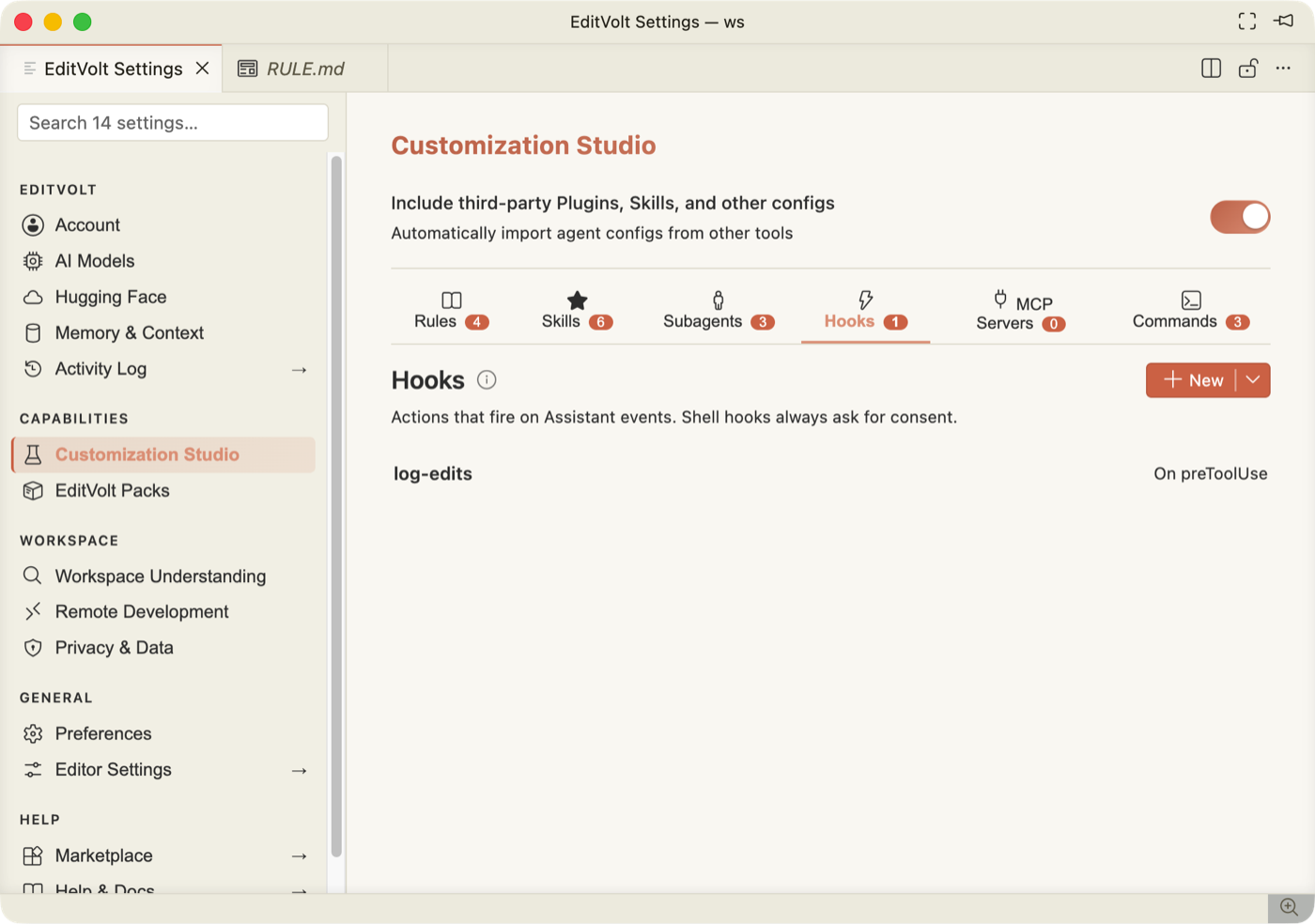
Once saved, the item appears in the list with its activation on the right, and the tab count goes up:
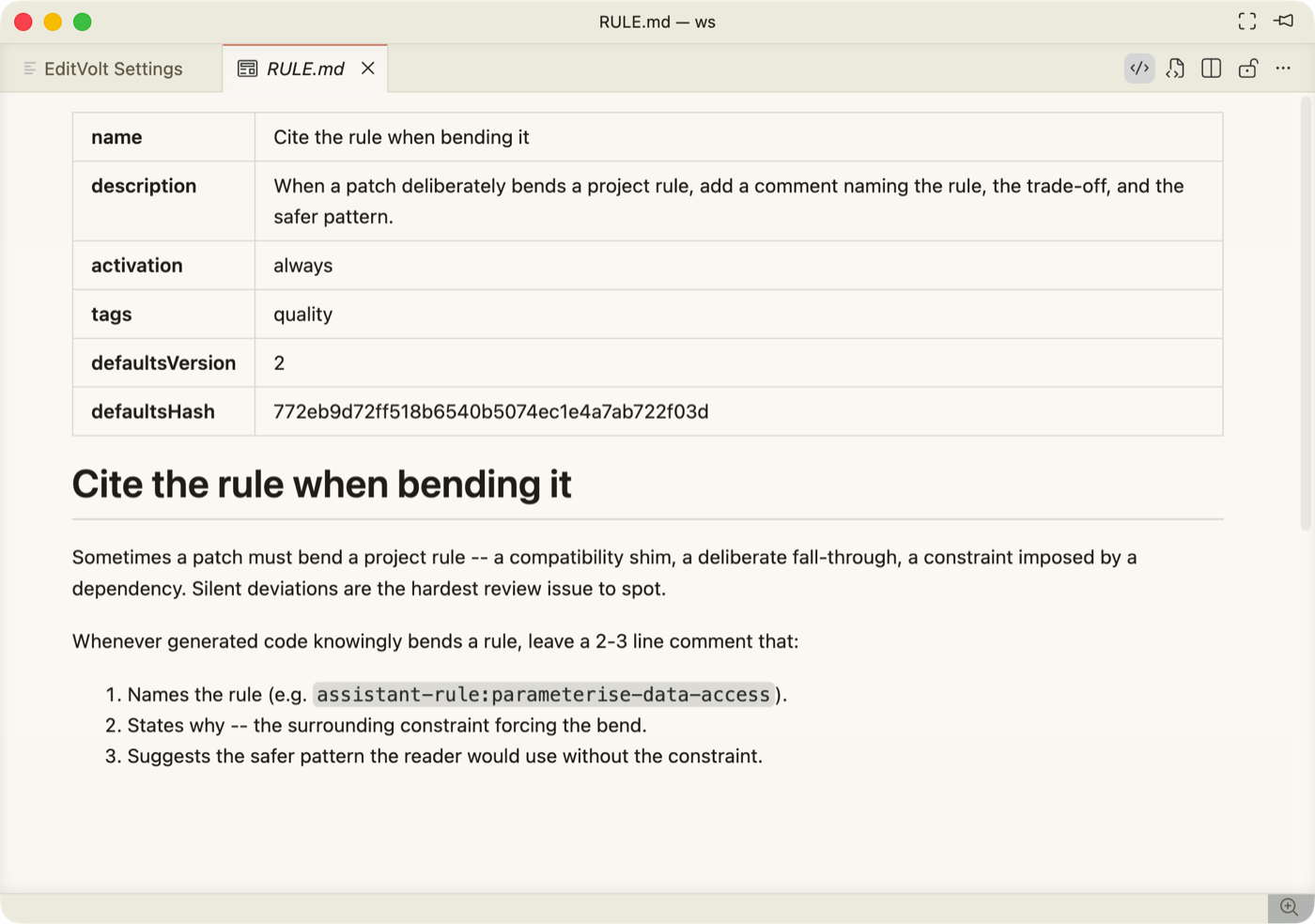
Clicking a row opens its Markdown file in a tab beside Settings — that file is the source of truth, so editing it by hand is fully supported:
Hover a row for its actions:
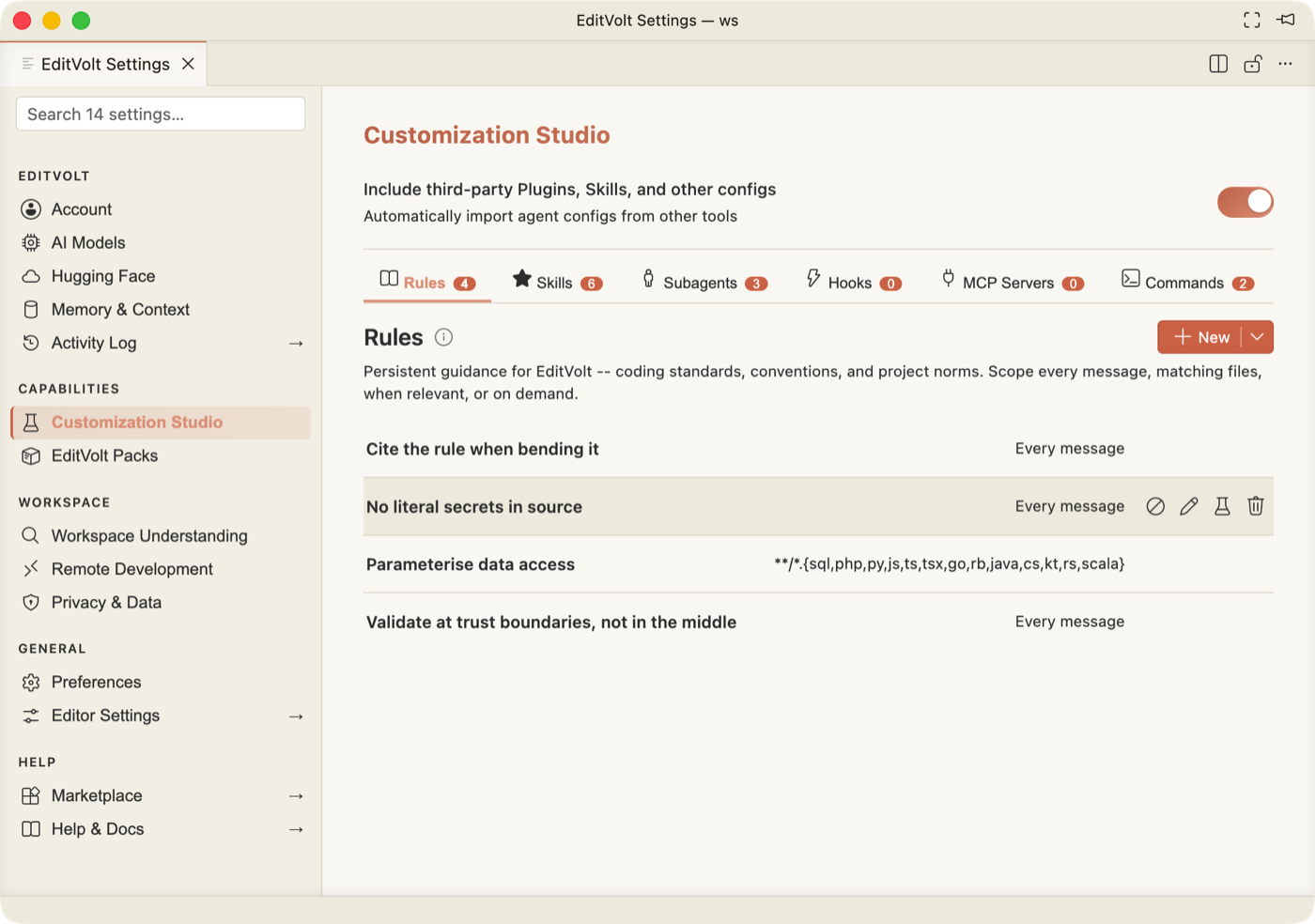
- Disable — keeps the file but takes the item out of the prompt.
- Edit — opens the underlying Markdown file.
- Test — a dry run: tells you whether the rule would apply to the active file, or for a hook, exactly what it would inject or ask to run.
- Delete — asks first, then removes the item's folder from
.editvolt/.
Rules
Standing constraints — "no literal secrets in source", "validate at trust boundaries". Scope each one to Every message, a file glob, When relevant, or On demand.
Skills
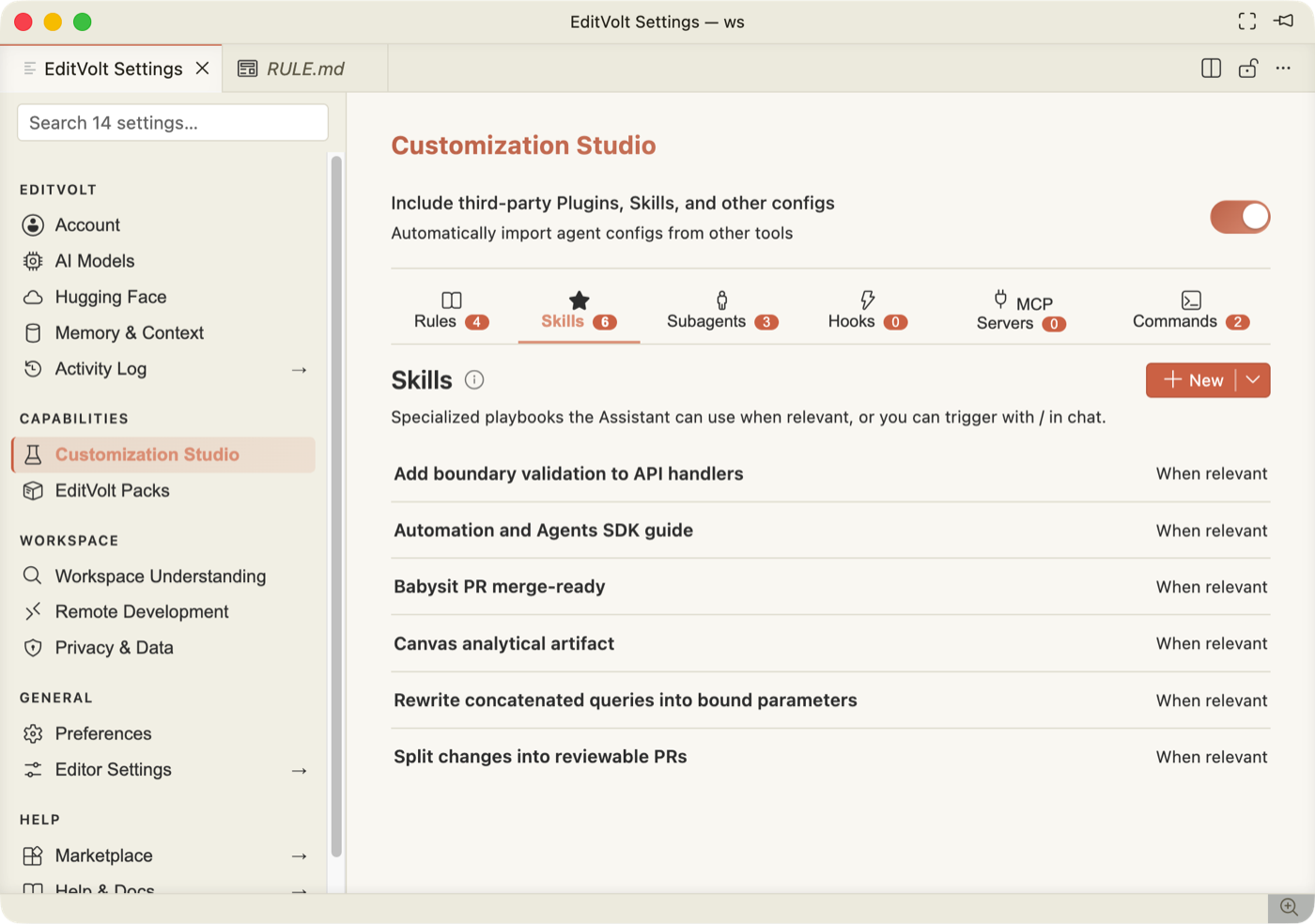
Reusable procedures the model can call, or that you invoke with @Skills.
Subagents
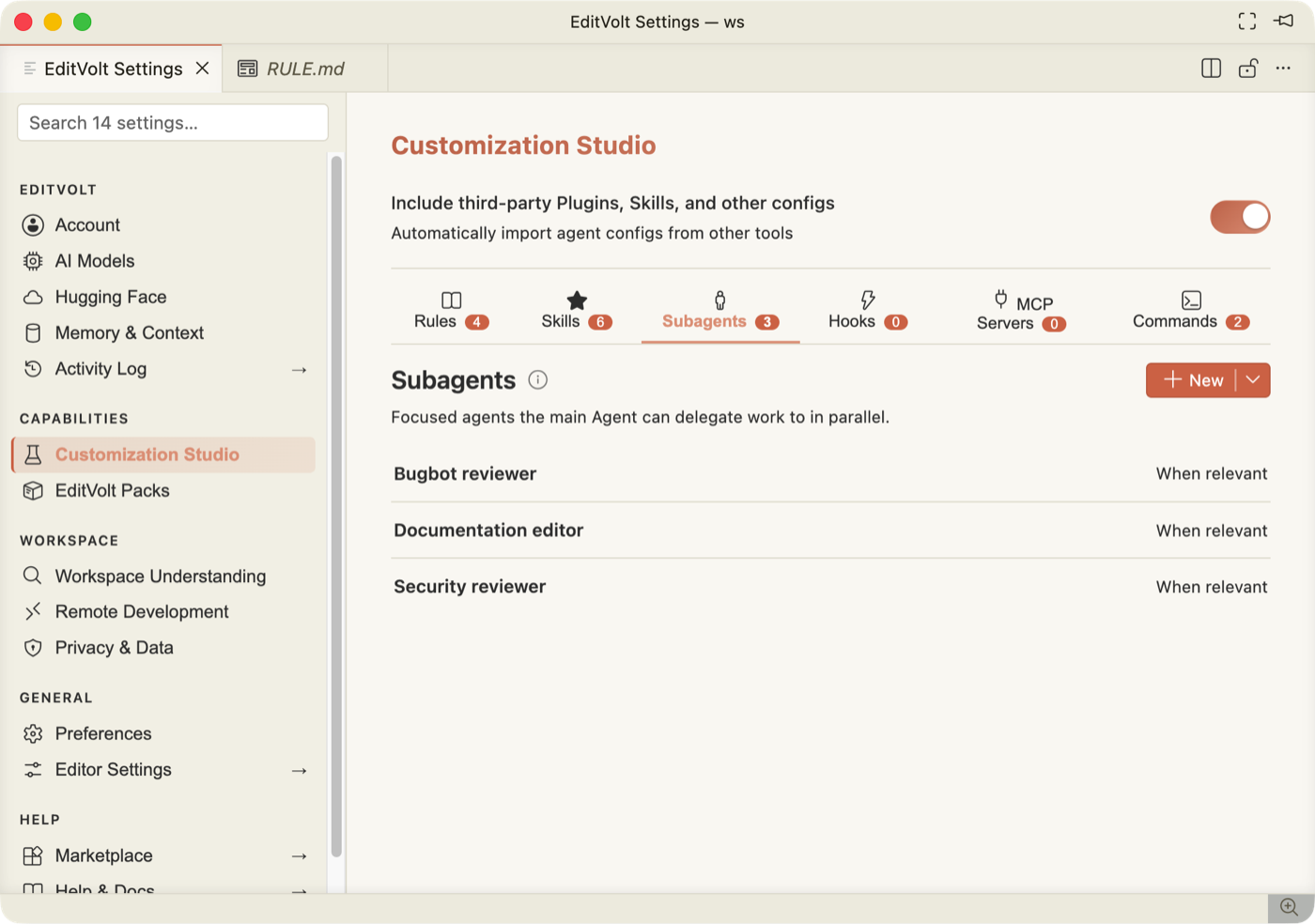
Focused delegates — a security reviewer, a docs editor — that the main agent hands work to. Ships with three seeded examples.
Hooks
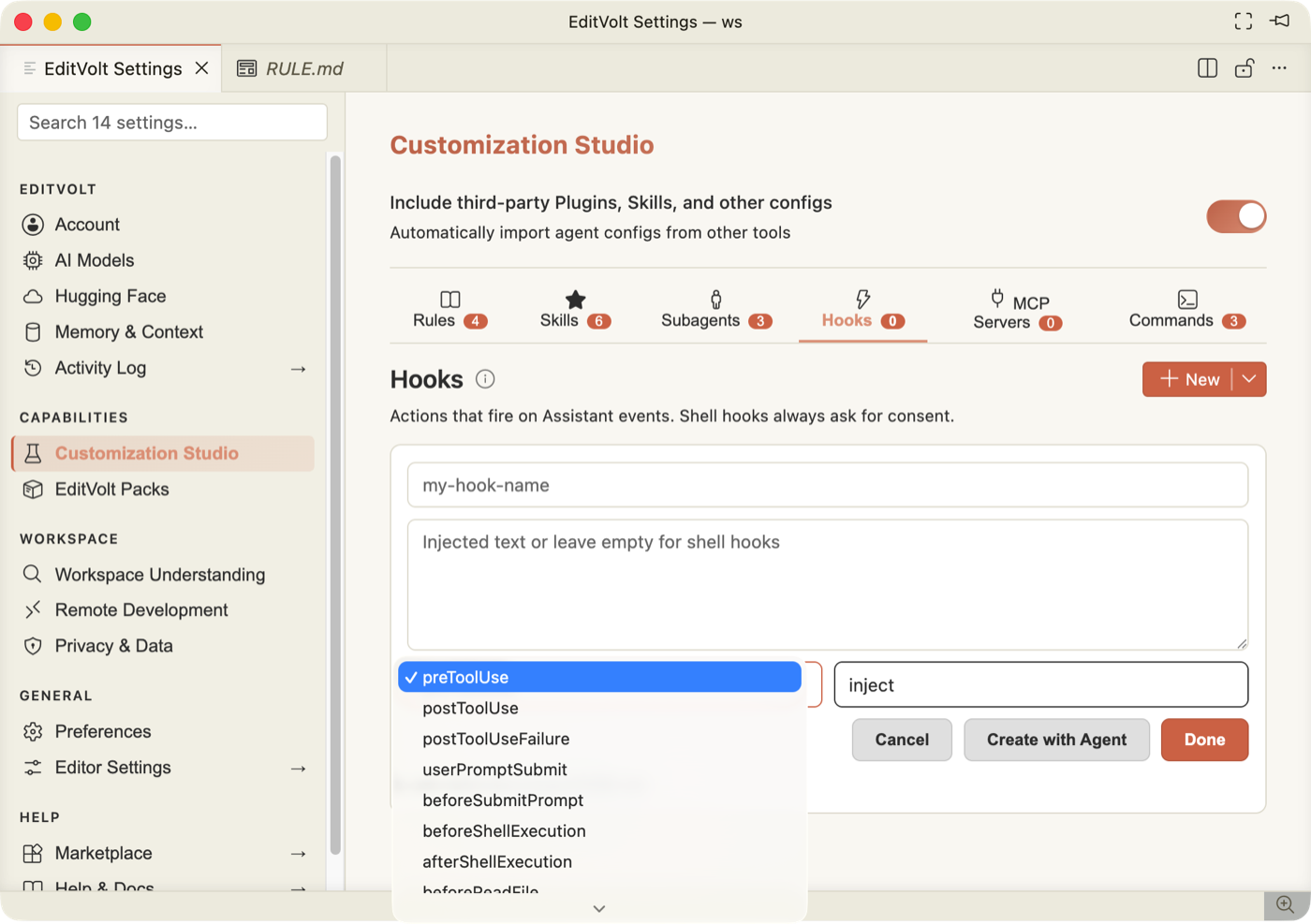
A hook fires on an agent lifecycle event and either injects text into the turn or runs a shell command.
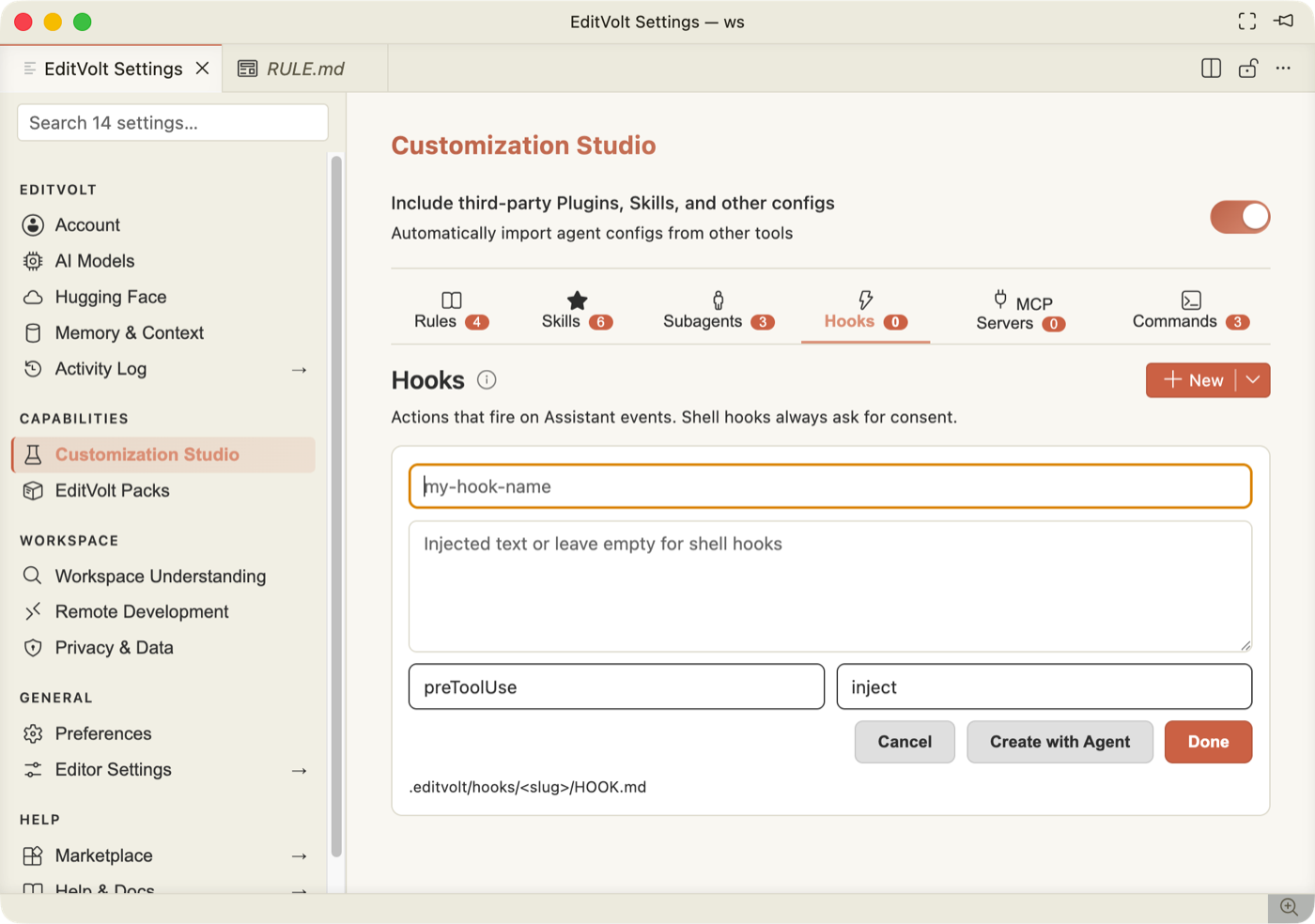
| Field | Options |
|---|---|
| Name | Folder slug. |
| Injected text | The text to inject. Leave empty for a shell hook. |
| Event | preToolUse, postToolUse, postToolUseFailure, userPromptSubmit, beforeSubmitPrompt, beforeShellExecution, afterShellExecution, beforeReadFile, afterFileEdit, sessionStart, sessionEnd, beforeTabFileRead, afterTabFileEdit, workspaceOpen, preCompact, subagentStop |
| Action | inject or shell |
Saved hooks list with the event they fire on:
Shell hooks are gated twice: product.hooks.shellEnabled is off by default, and each
command still asks for consent the first time, showing you the exact command. The master
switch is product.hooks.enabled, and product.hooks.showInChat renders an inline marker
whenever a hook fires. Hooks written by hand into .editvolt/hooks.json are honoured too —
both sources are merged at runtime.
MCP Servers
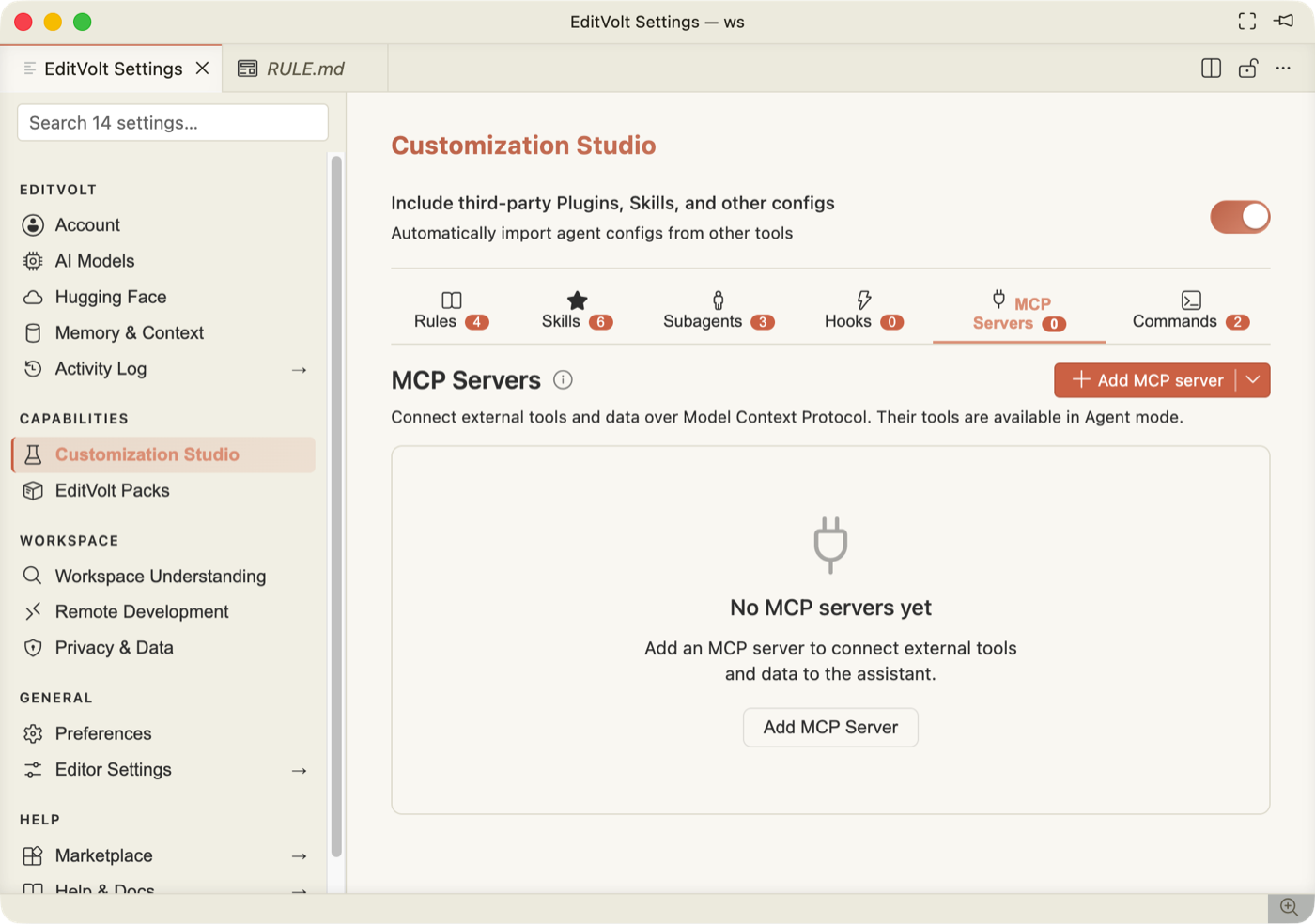
Add a Model Context Protocol server to give the agent extra tools. Each server row offers
Start, Stop and Output, and every MCP tool asks for consent the first time it
runs; approving with Remember writes it to the mcp allowlist in
.editvolt/permissions.json. Project-scoped servers are deliberately ignored inside
agent-created managed workspaces, so an agent can never grant itself a launchable binary.
Add MCP server first asks where to write the config:
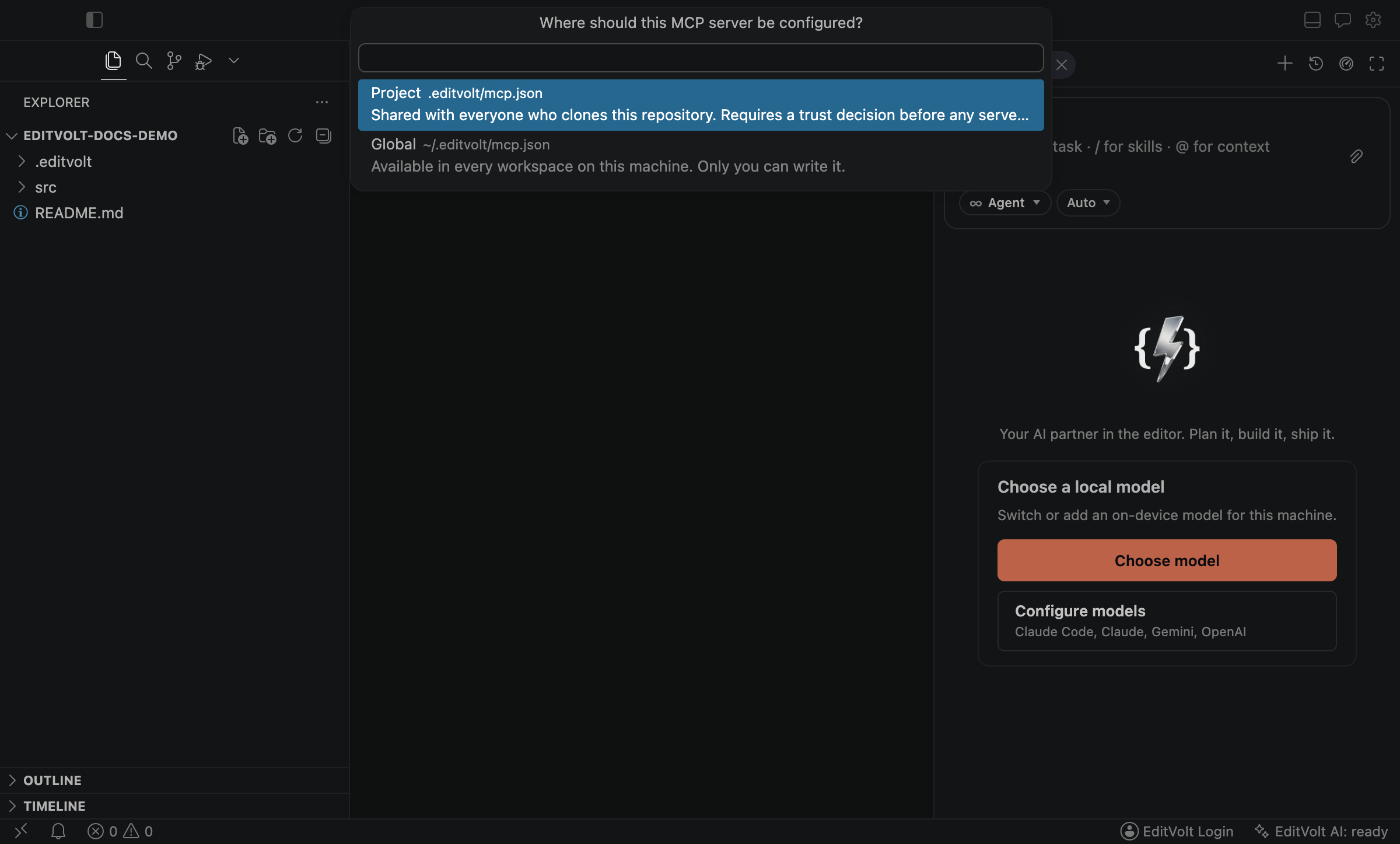
- Project (
.editvolt/mcp.json) — shared with everyone who clones the repo. Requires a trust decision from each person before any server it declares actually starts. - Global (
~/.editvolt/mcp.json) — this machine only, for personal servers you don't want to commit.
Either choice opens the config file with a starter template — it's a plain JSON file you
edit directly, listing each server under mcpServers by name:
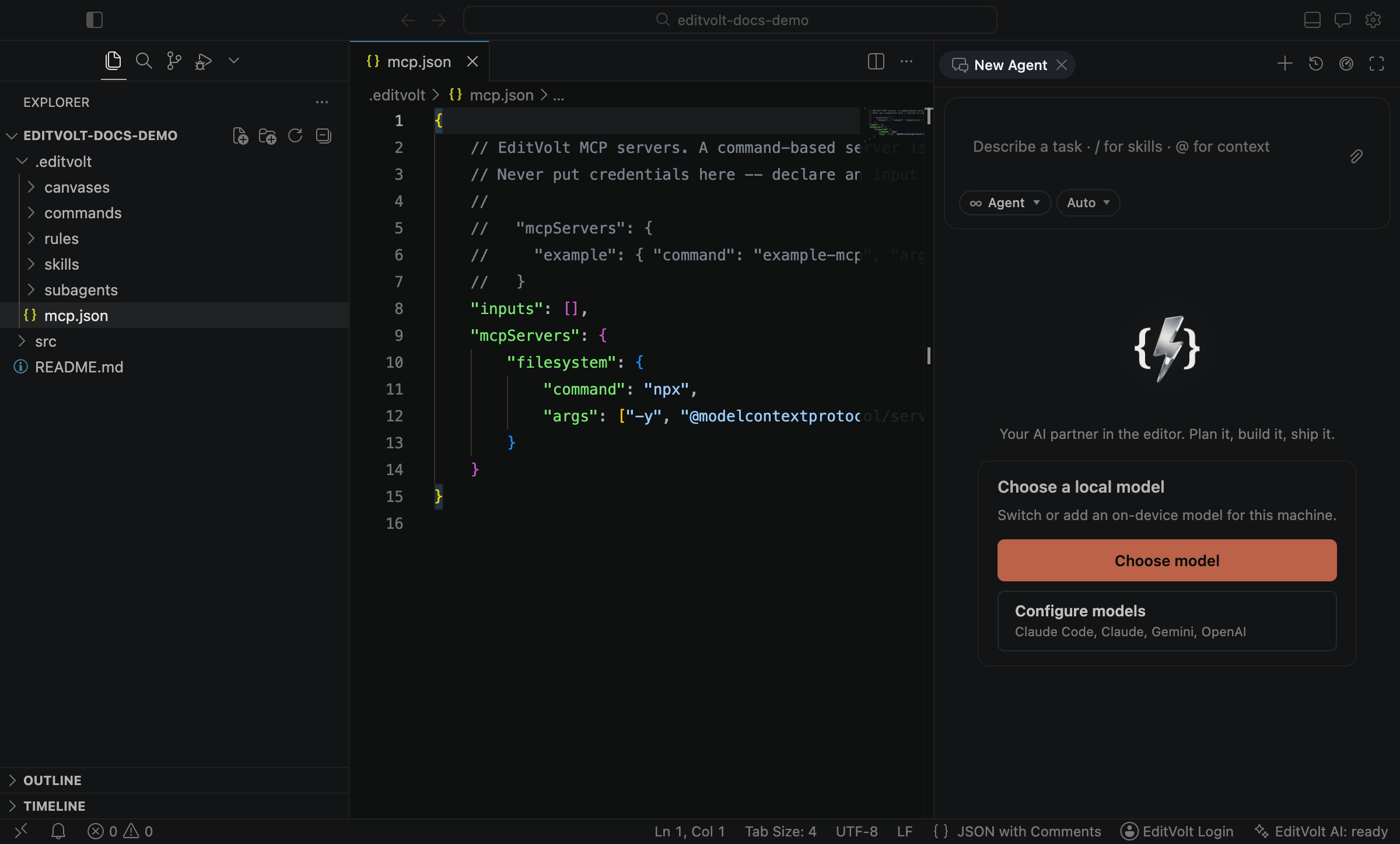
See Customization → MCP servers for the full field
reference (stdio vs. HTTP servers, inputs for secrets).
EditVolt Packs
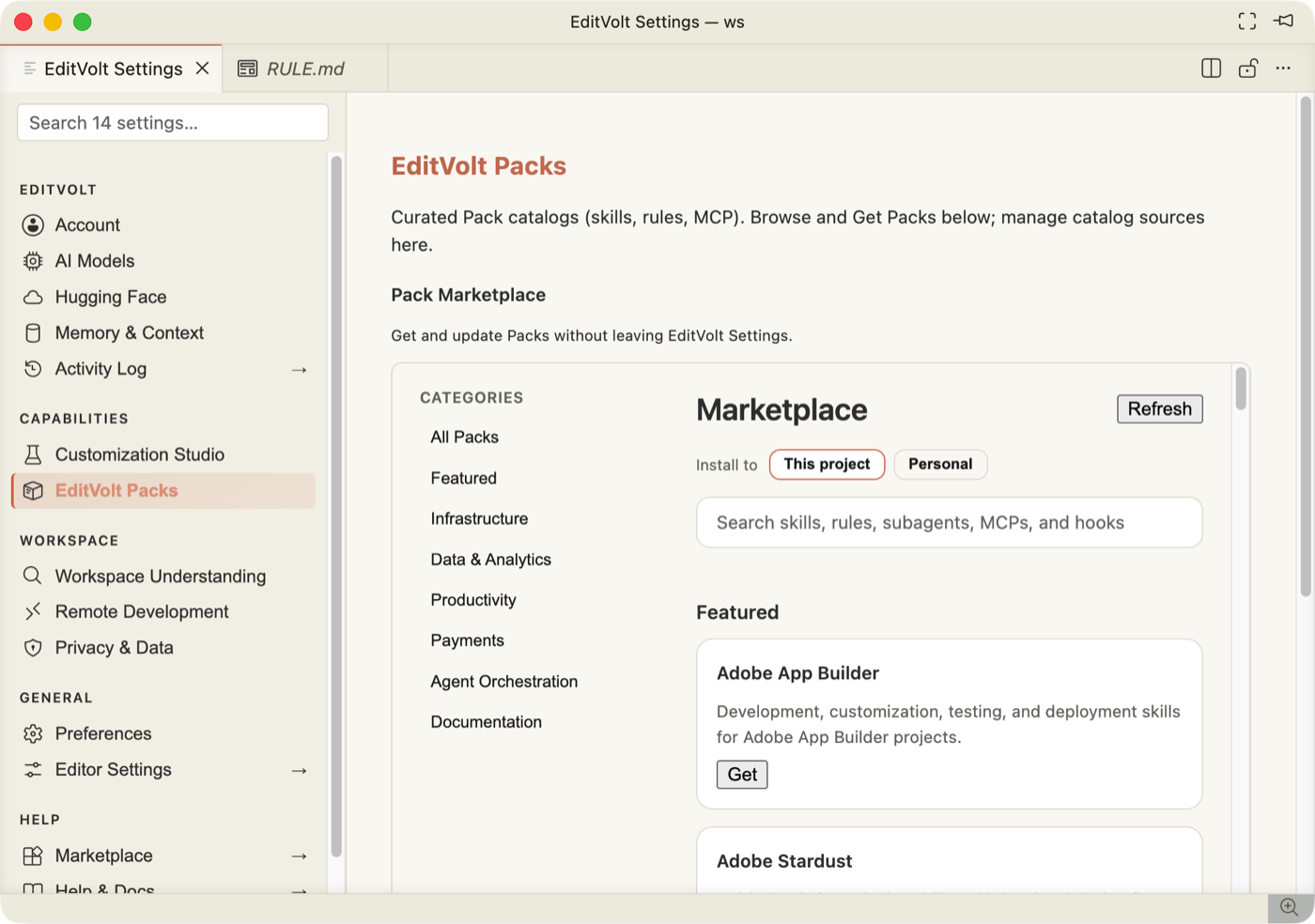
Curated bundles of skills, rules, subagents, MCP servers and hooks, browsable without
leaving Settings: categories on the left, search, and Get on each pack. Install to
chooses between This project (.editvolt/ in the repo) and Personal (your user
profile). Catalog sources are managed further down the same page.
Workspace Understanding
What EditVolt already knows about this project.
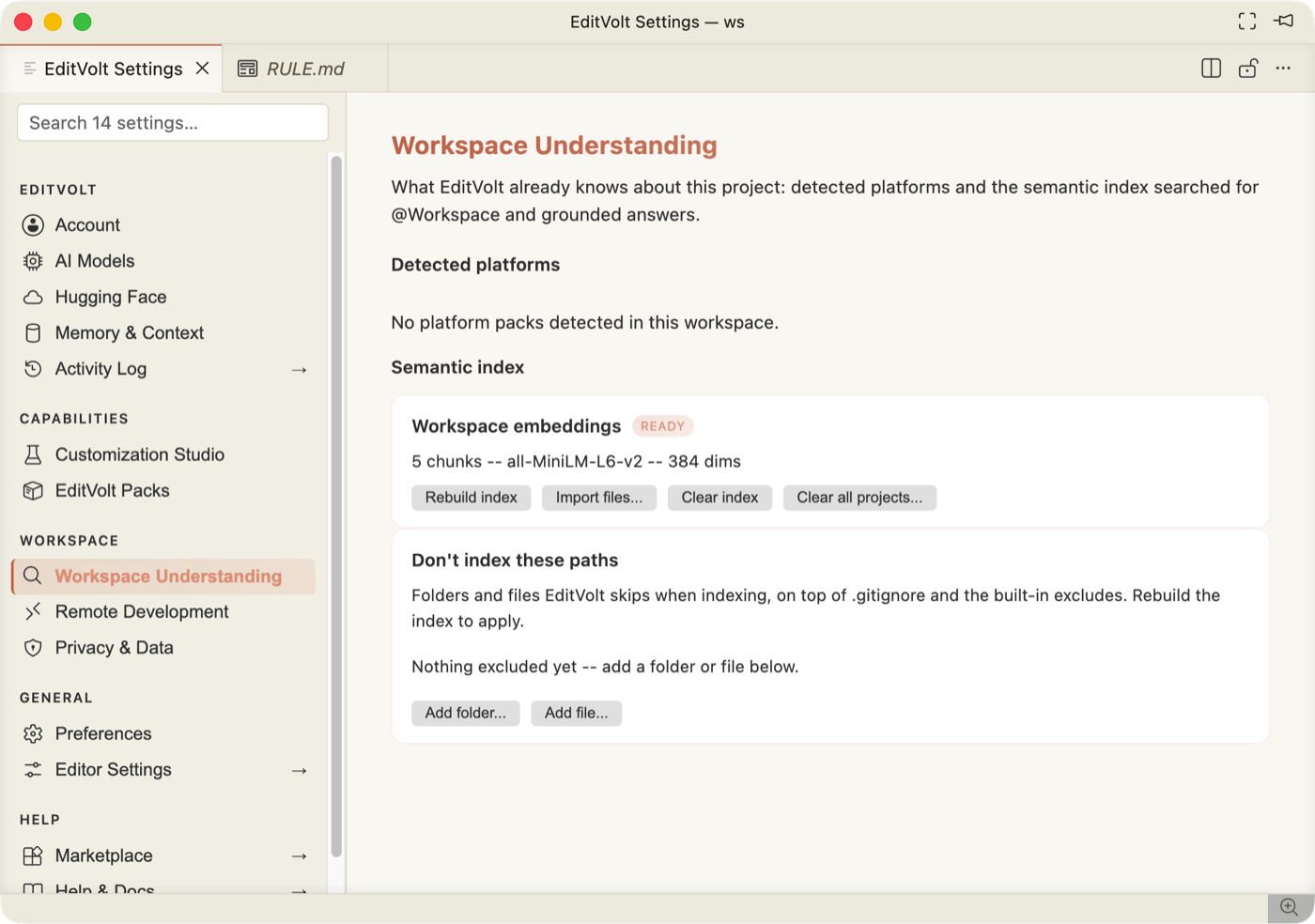
| Control | What it does |
|---|---|
| Detected platforms | Platform packs recognised in this workspace. |
| Workspace embeddings | Index state, chunk count, and the embedding model (all-MiniLM-L6-v2, 384 dims), all local. |
| Rebuild index / Import files… / Clear index / Clear all projects… | Index maintenance. |
| Don't index these paths | Extra excludes on top of .gitignore (product.context.indexExcludePatterns). Add folder… / Add file…; rebuild to apply. |
Remote Development
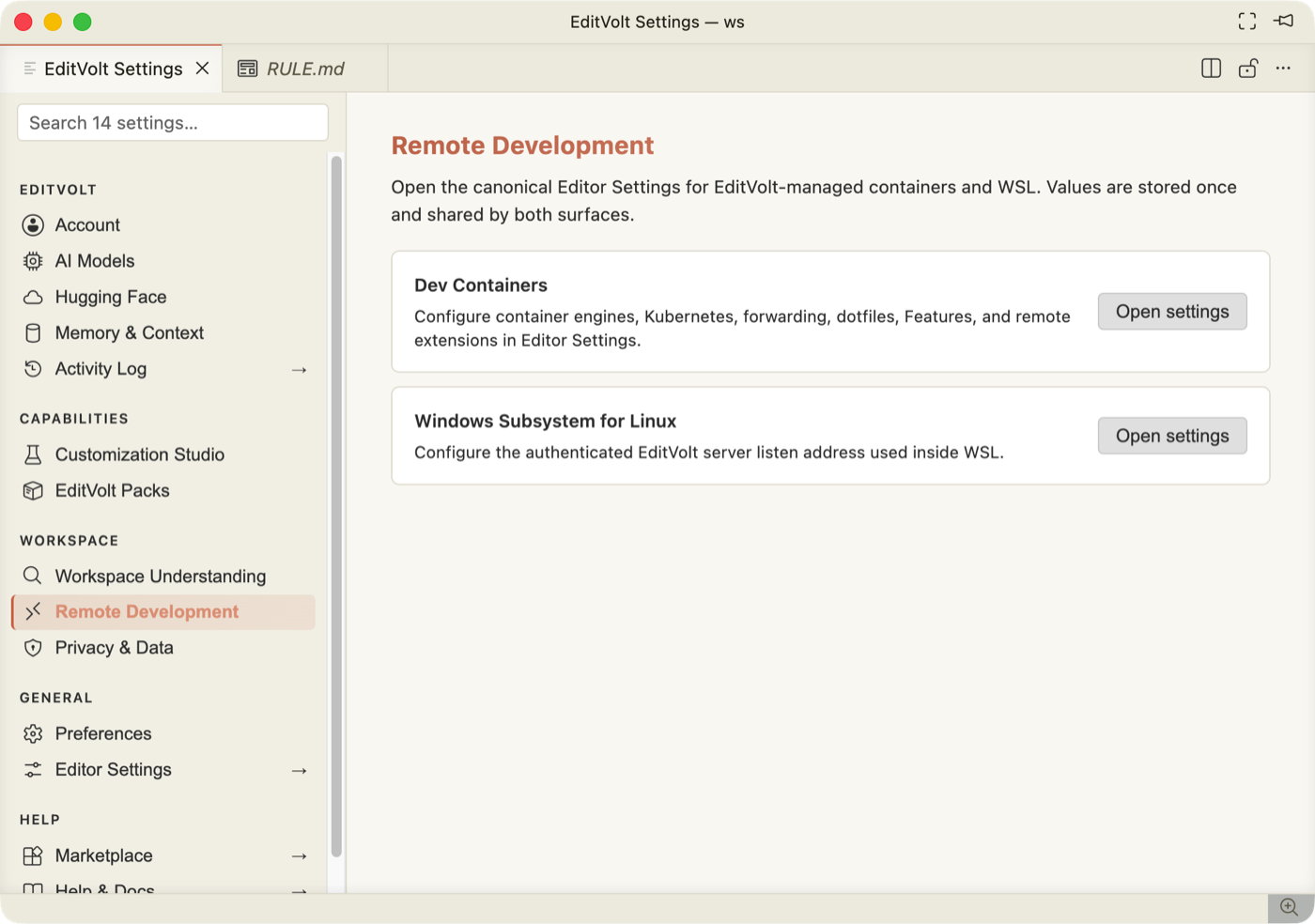
Two links into the canonical editor settings for Dev Containers (engines, Kubernetes, port forwarding, dotfiles, Features, remote extensions) and WSL (the authenticated EditVolt server listen address). Values are stored once and shared by both surfaces.
Privacy & Data
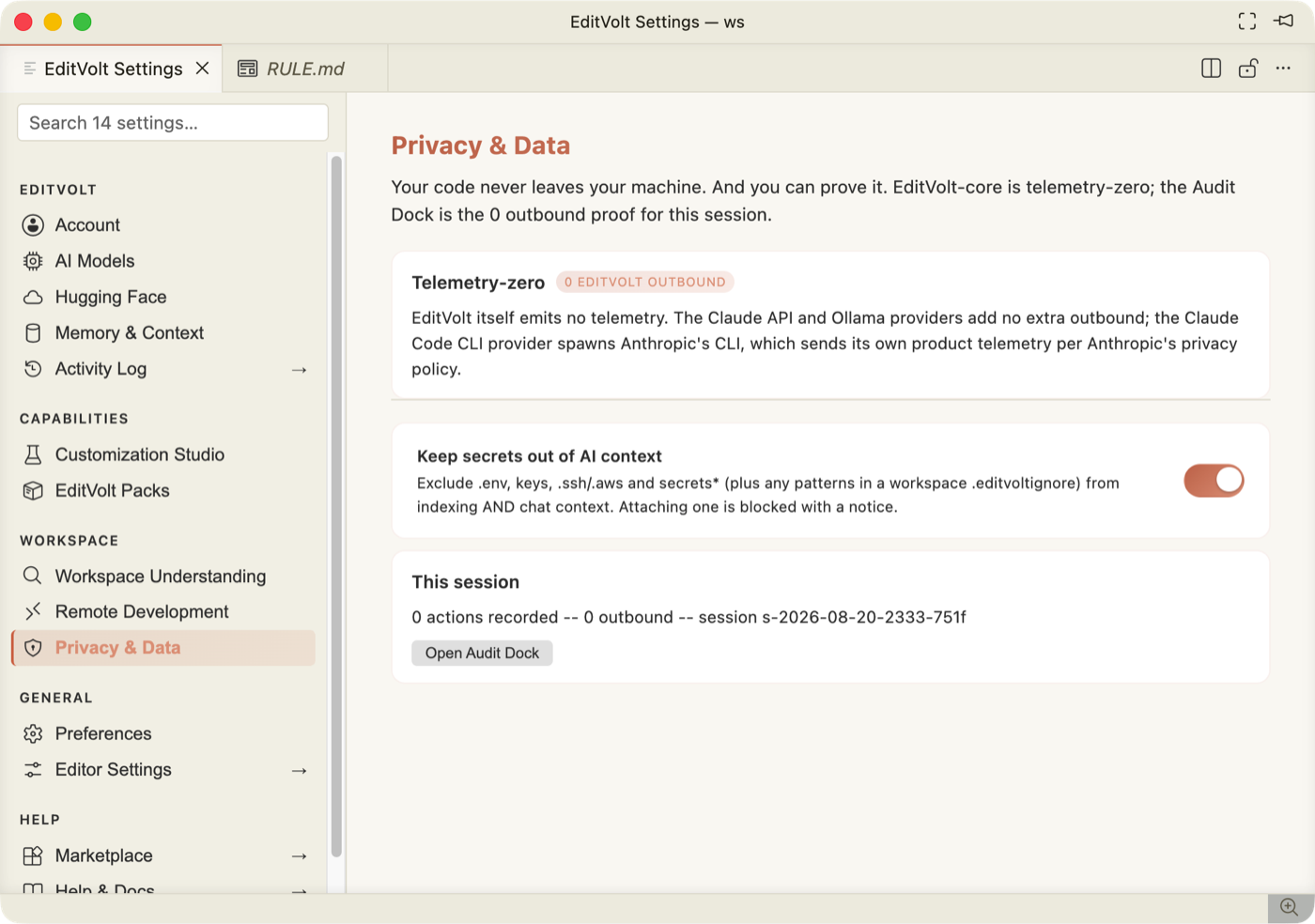
- Telemetry-zero — EditVolt emits no telemetry of its own. The card is explicit about the exception: the Claude Code CLI provider spawns Anthropic's CLI, which sends its own product telemetry.
- Keep secrets out of AI context (
product.privacy.ignoreFile, on) — excludes.env, keys,.ssh/.aws,secrets*and anything in.editvoltignorefrom both indexing and chat context. Attaching one is blocked with a notice. - This session — actions recorded and outbound count, with Open Audit Dock.
Preferences
Behaviour toggles, each mapping to one setting and taking effect immediately.
Approvals & Execution
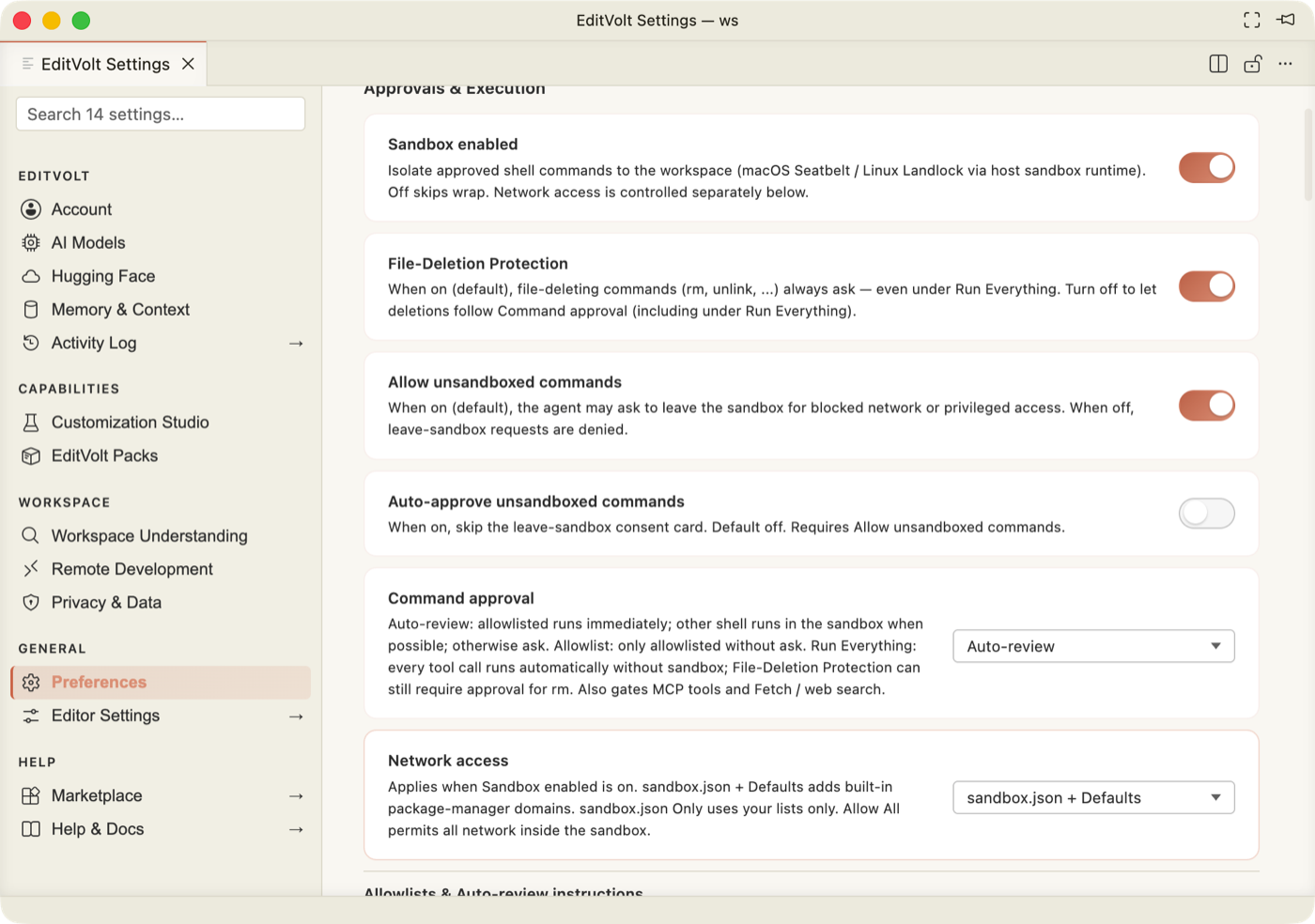
| Control | Setting | Default |
|---|---|---|
| Sandbox enabled | chat.agent.sandbox.enabled | on — isolates approved shell commands (macOS Seatbelt / Linux Landlock) |
| File-Deletion Protection | product.commands.protectFileDeletion | on — rm, unlink … always ask, even under Run Everything |
| Allow unsandboxed commands | chat.agent.sandbox.allowUnsandboxedCommands | on — the agent may ask to leave the sandbox |
| Auto-approve unsandboxed commands | chat.agent.sandbox.allowAutoApprove | off — when on, skips the leave-sandbox consent card |
| Command approval | product.commands.runMode | auto-review — allowlisted runs immediately, other shell runs sandboxed, otherwise asks. Also allowlist and run-everything. Gates MCP tools and Fetch / web search too. |
| Network access | product.commands.sandboxNetworkMode | sandbox.json + Defaults — adds built-in package-manager domains. Also sandbox.json Only and Allow All. |
Allowlists & Auto-review instructions
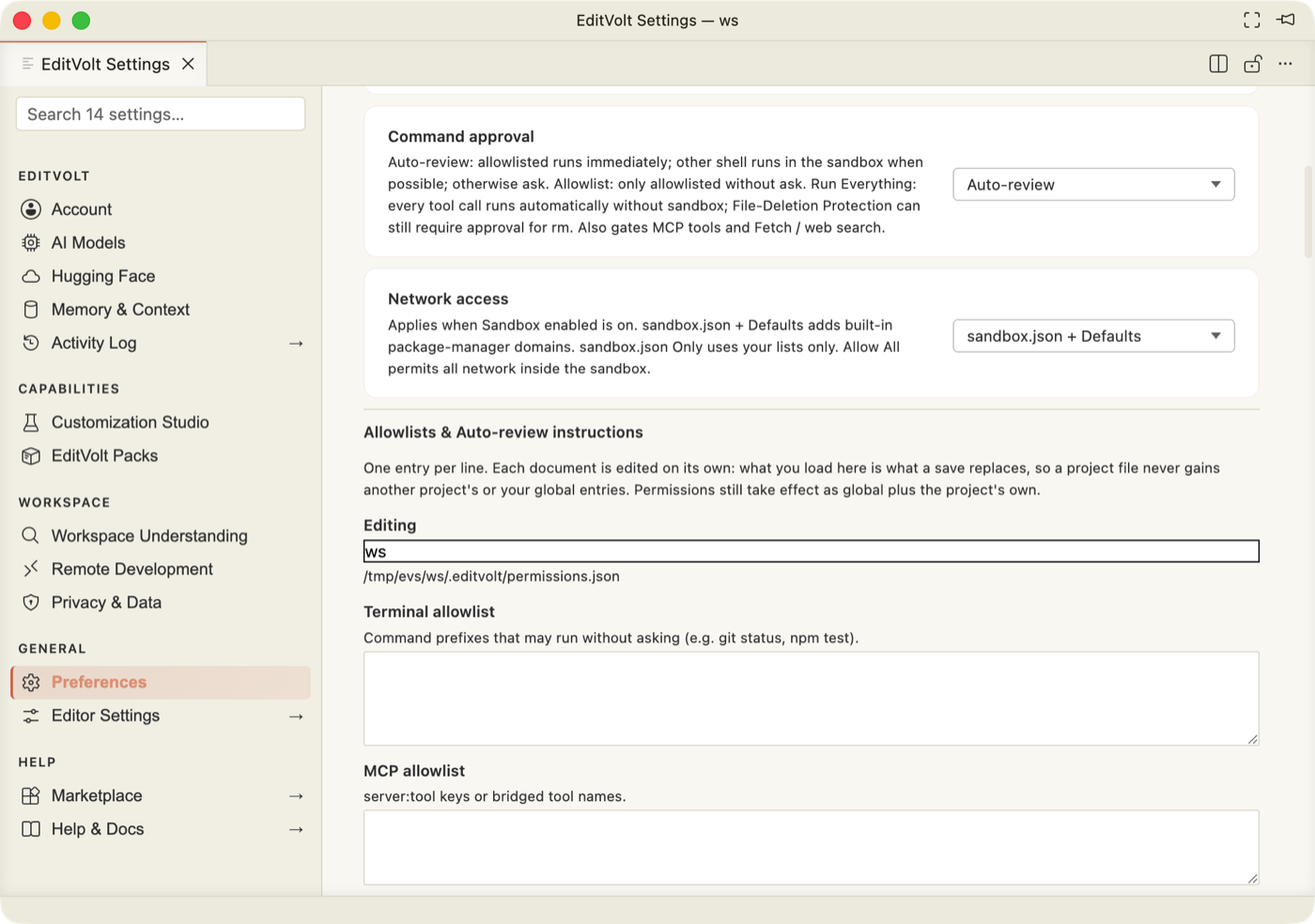
Pick which document you are Editing (this project, or your global one — the resolved path is shown), then fill in, one entry per line:
- Terminal allowlist — command prefixes that may run without asking (
git status,npm test). - MCP allowlist —
server:toolkeys or bridged tool names. - Fetch host allowlist — hostnames for fetch/download (
example.commatchesapi.example.com). - Auto-review allow / block instructions — natural-language hints for the classifier.
Save allowlists writes the file; Open raw JSON edits .editvolt/permissions.json
directly. A save replaces only the document you loaded — permissions still take effect as
global plus the project's own.
Applying Changes
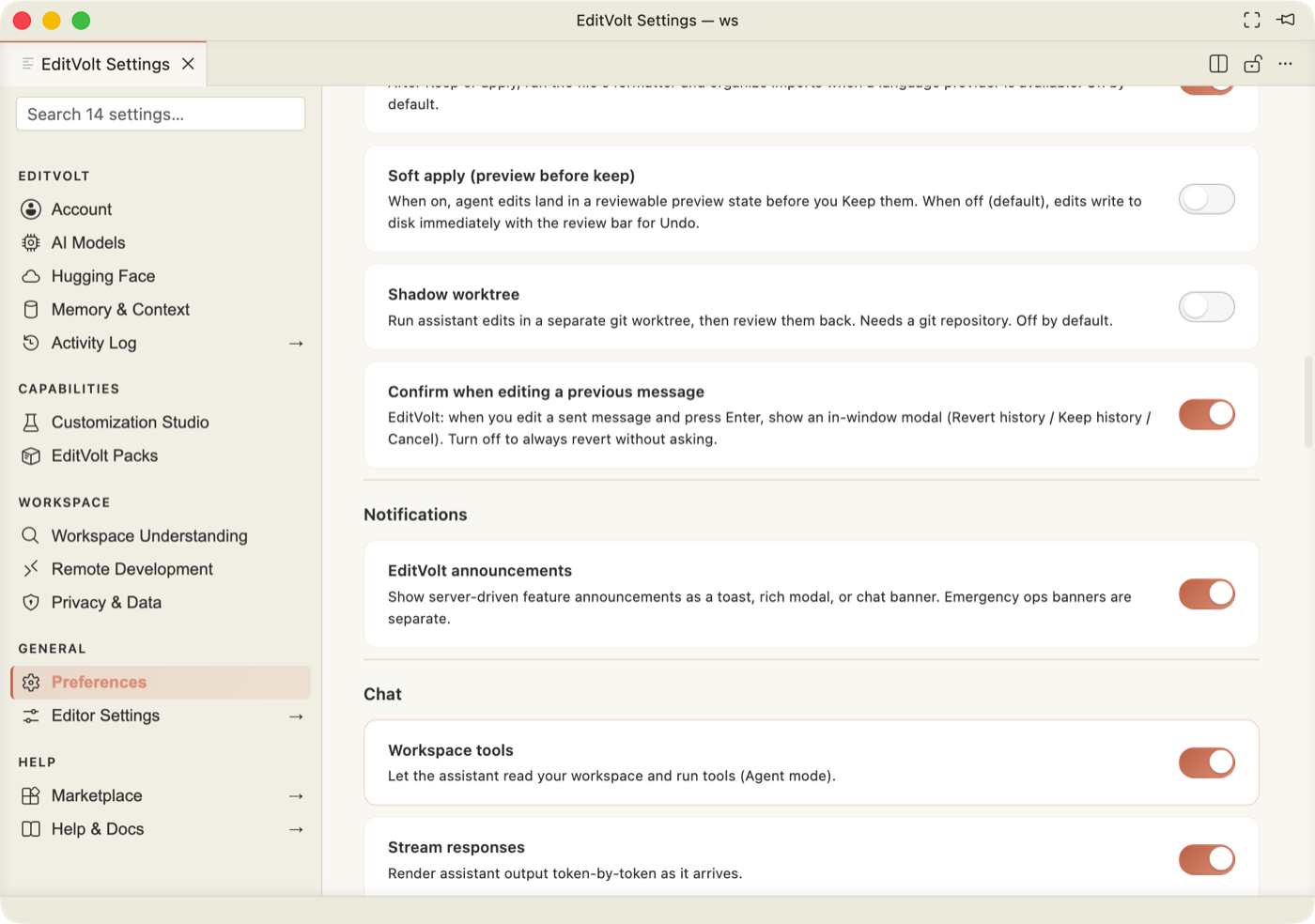
| Control | Setting | Default |
|---|---|---|
| Show review bar after edits | product.edits.inlinePreview | on |
| Format on apply | product.edits.formatOnApply | on |
| Soft apply (preview before keep) | product.edits.softApply | off |
| Shadow worktree | product.chat.shadowWorktree | off — runs agent edits in a separate git worktree |
| Confirm when editing a previous message | product.chat.editResend.confirm | on |
Notifications
| Control | Setting | Default |
|---|---|---|
| EditVolt announcements | product.announcements.enabled | on |
Chat
| Control | Setting | Default |
|---|---|---|
| Workspace tools | product.tools.enabled | on |
| Stream responses | product.modes.streaming | on |
| Stop on first error | product.modes.stopOnFirstError | off |
| Parallel read-only tools | product.chat.parallelToolCalls | on |
| Wake on background command failure | product.chat.wakeOnBackgroundExit | — |
| Design: auto-run safe commands | product.design.autoRunSafeCommands | on |
| Output style | product.assistant.outputStyle | default · concise · explanatory · structured |
| Max file read size (bytes) | product.tools.maxReadFileBytes | 16 KB – 1 MB |
| Agent iteration depth | product.agent.maxToolRounds | 1–10 tool round-trips per turn |
Editor
| Control | Setting |
|---|---|
| Inline completions | product.completions.enabled |
| Tab predictions | product.completions.tabPredictions.enabled |
| Tab to next problem | product.completions.nextEdit.enabled |
| Stream inline completions | product.completions.streaming.enabled |
| Next-edit propagation (default off) | product.completions.propagation.enabled |
| Completion source — Local / Cloud / Auto | product.completions.source |
| Tab prediction source — Auto / Local only / Cloud | product.completions.tabPredictions.cloud |
| Completion debounce (ms, min 80) | product.completions.debounceMs |
| Propagation min similarity (0–1) | product.completions.propagation.minScore |
Workspace index
| Control | Setting |
|---|---|
| Auto-search the workspace | product.context.autoSearch |
| Index at startup | product.context.proactiveIndex |
| Index embedding acceleration — Auto / CPU only / Prefer GPU | product.context.indexAcceleration |
| Auto-reindex interval (days; 7 = weekly, 0 = off) | product.context.indexReconcileIntervalDays |
Editor Settings → · Marketplace → · Help & Docs →
- Editor Settings opens the standard editor settings UI (fonts, keybindings, language settings, everything not EditVolt-specific).
- Marketplace opens the Extensions view (Open VSX).
- Help & Docs opens the documentation in your browser.
Changing the colour theme
The Settings window follows the editor theme; it has no theme picker of its own. Change
the theme in Editor Settings (or ⌘K ⌘T → Preferences: Color Theme), and Settings
repaints with it:
Fixed since the first draft of this page
These were open when this page was first written and are fixed in the current build; the screenshots above are all re-shot from the fixed build.
| Area | What changed |
|---|---|
| Memory & Context → + Add note | Notes were rejected by the local memory host and the failure was swallowed. Notes now persist to <workspace>/.editvolt/memory.db, and a failed write raises a visible error. |
| Auto-approve unsandboxed commands | Shipped on despite its "Default off" copy. Now off by default on every OS. |
| Help & Docs | Pointed at a dead GitHub URL; now opens the documentation site from product.json. |
| Naming | "Assistant" and a literal PRODUCT placeholder appeared in Settings copy and in the Audit panel; both now read EditVolt, and seeded customizations are named editvolt-default-*. |
| Search | Matched section names only; now matches the settings inside each section. |
| Section scrolling | Sections opened at the previous section's scroll offset; they now open at the top. |
| Capability chips | The last chip's label was clipped; the row now wraps. |
| Dark theme | Two scrollbar gutters stayed white; they now follow the theme. |
| Studio rows | Actions were right-click only; disable / edit / test / delete now appear on hover. |
| Provider grouping | An installed-but-signed-out Claude Code CLI was listed as Connected; it now sits under Available to connect, and the default-provider dropdown only offers enabled providers. |